How is Proyex structured?
Written By Janina
Last updated 6 months ago
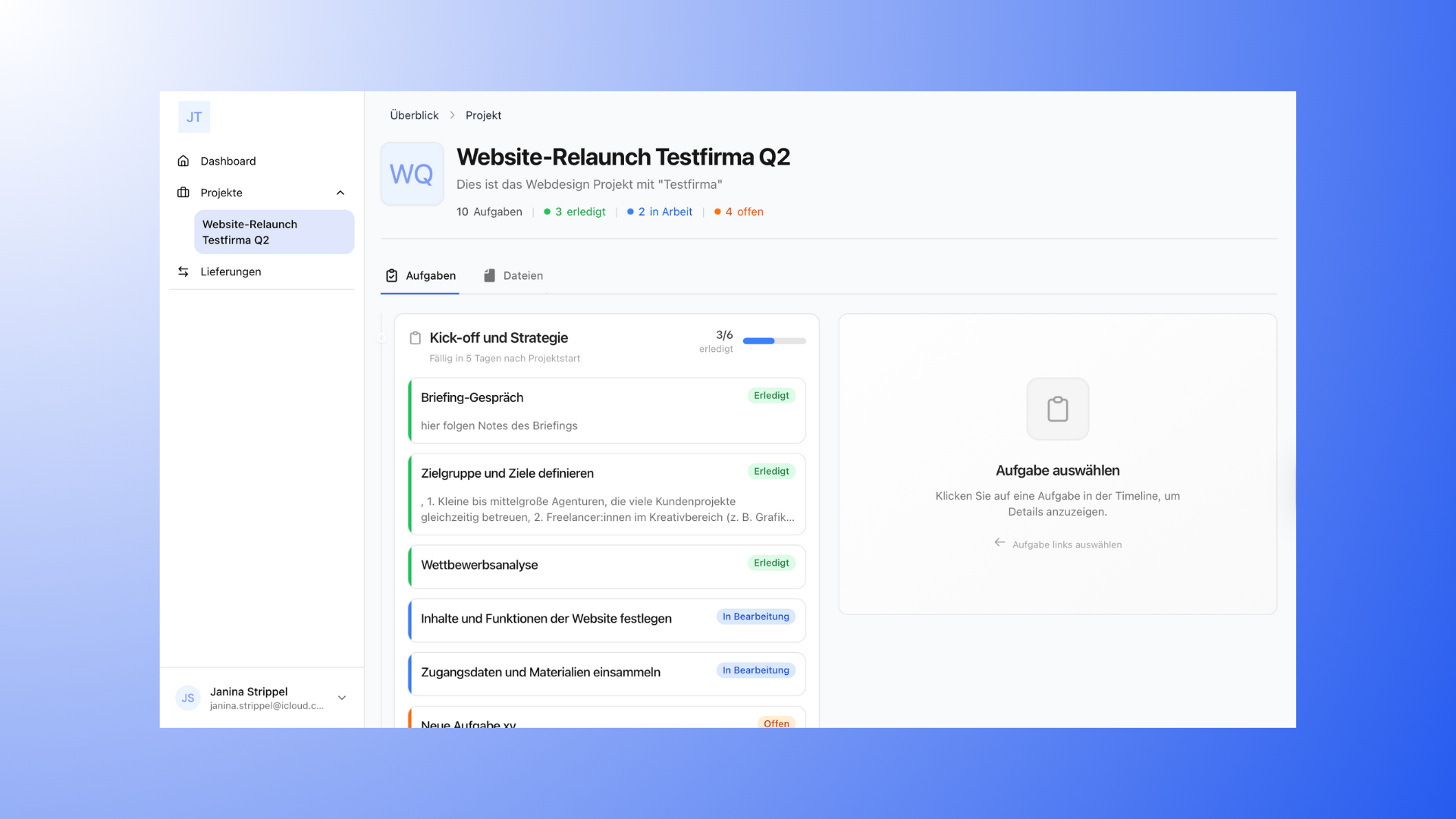
Proyex follows a simple principle: everything revolves around the project. For project management to work really well, it always needs a clear structure.
The basic principle of Proyex
The central focus of Proyex is always the project.
A project bundles:
all tasks
all milestones
all files
all revisions and approvals
all persons involved
Whether it's an internal project or a customer project, the structure usually remains the same.
Only when you invite a customer does a project actively become a customer project.
The basic logic is:
Project → Milestones → Tasks
This structure is supplemented by revisions for feedback and approval processes.
Projects: The central location for everything
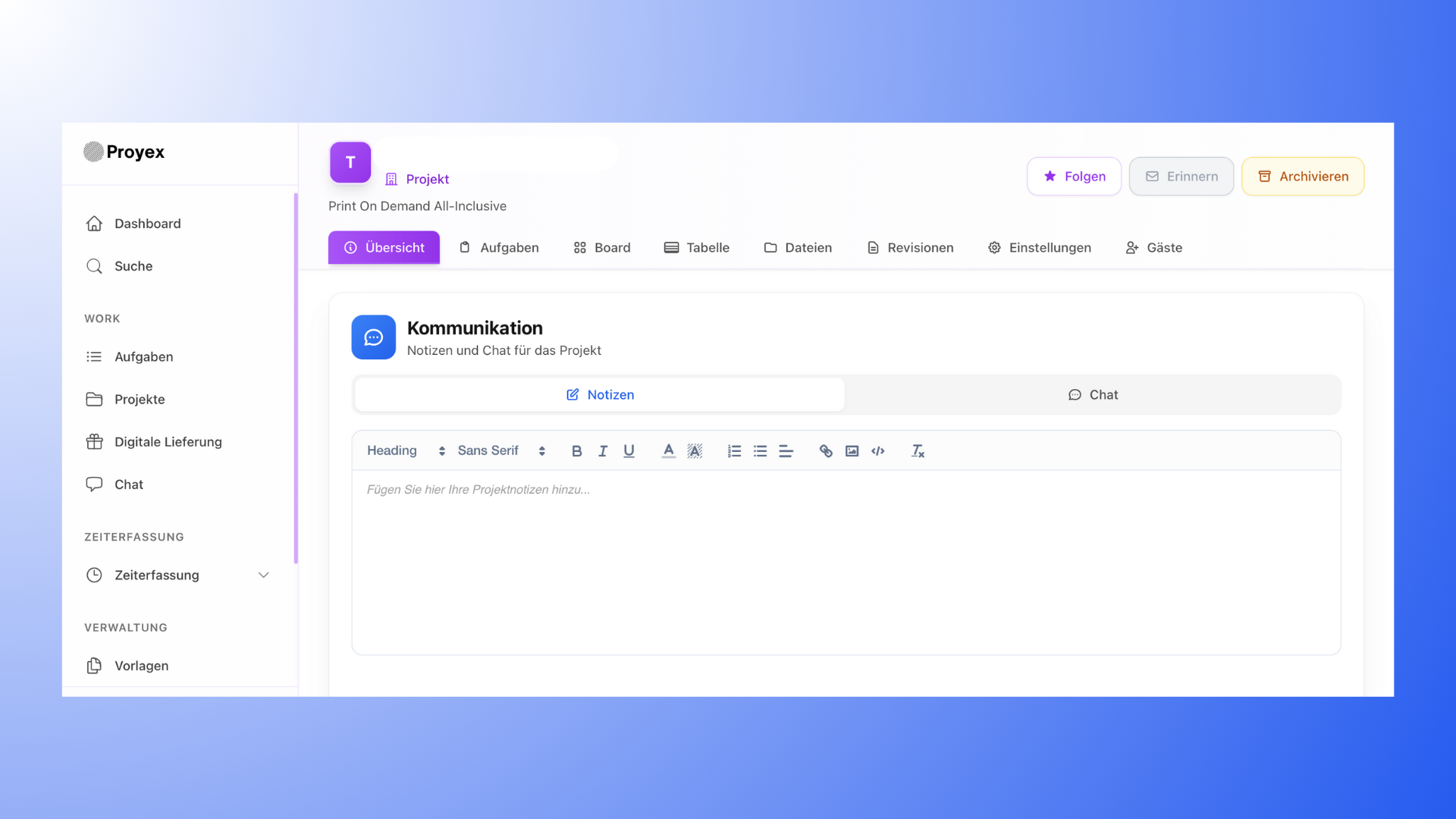
Every project in Proyex has the same structure and its own menu with fixed sections:
Overview
Tasks
Board (Kanban)
Table
Files
Revisions
Settings
Guests
This way, you always know where to find what you need, regardless of which project you are working on.
A project can be:
be used internally (e.g., team or personal organization)
or be shared with customers
The structure does not change, only the visibility.
Milestones: Project phases with deadlines
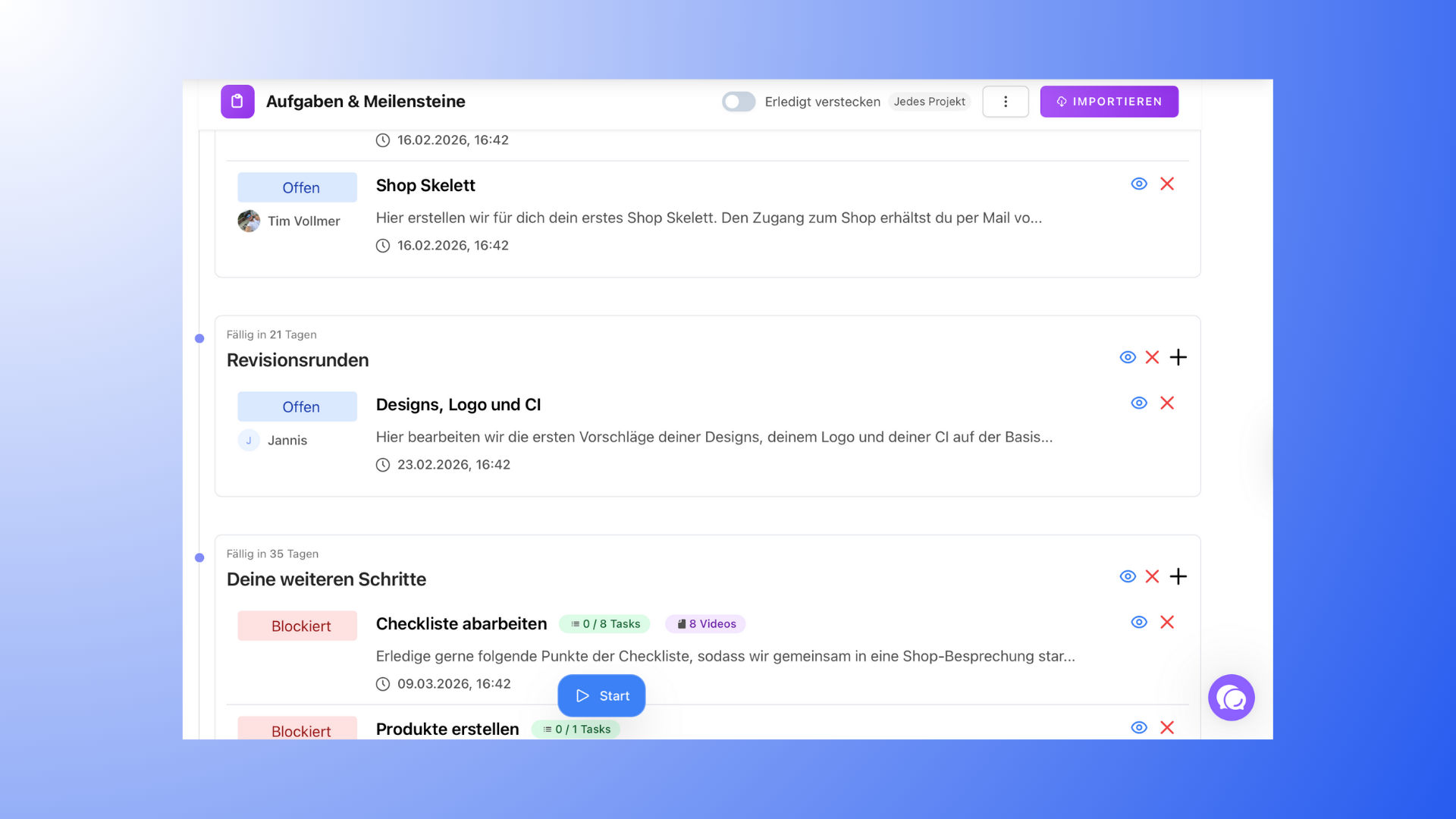
In Proyex, milestones represent the major project phases.
They structure your project and group together tasks that belong together thematically.
Important:
Milestones are not tasks that you can check off
However, they do have deadlines
They show progress based on the tasks they contain
👉 You can find a detailed explanation in the article "Create milestones".
Tasks: Specific work steps
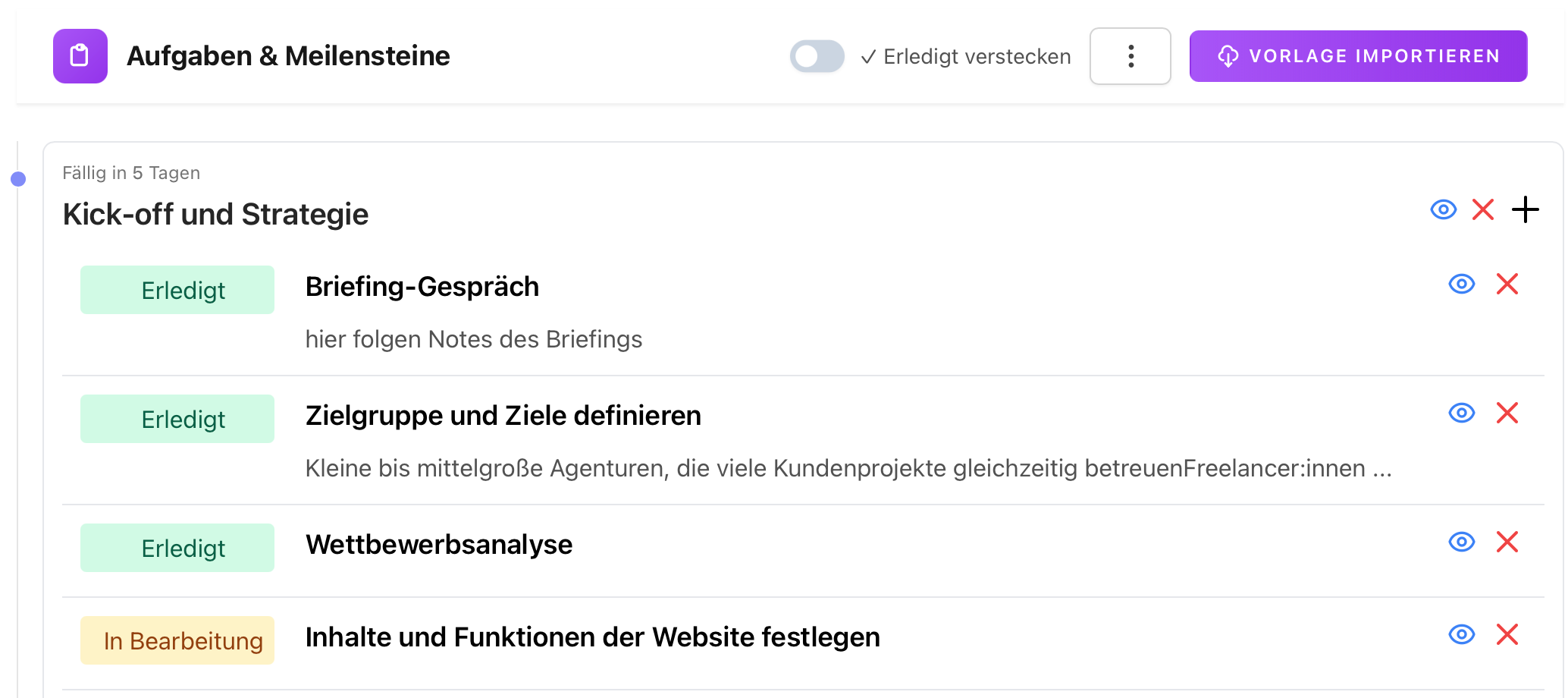
Tasks are at the heart of daily work in Proyex.
They always belong to:
a project
and a milestone
Tasks can have statuses such as:
have a status (e.g., open, in progress, blocked, completed)
have responsible persons
Contain due dates
Include files
👉 You can find all the details here: "Create and edit tasks"
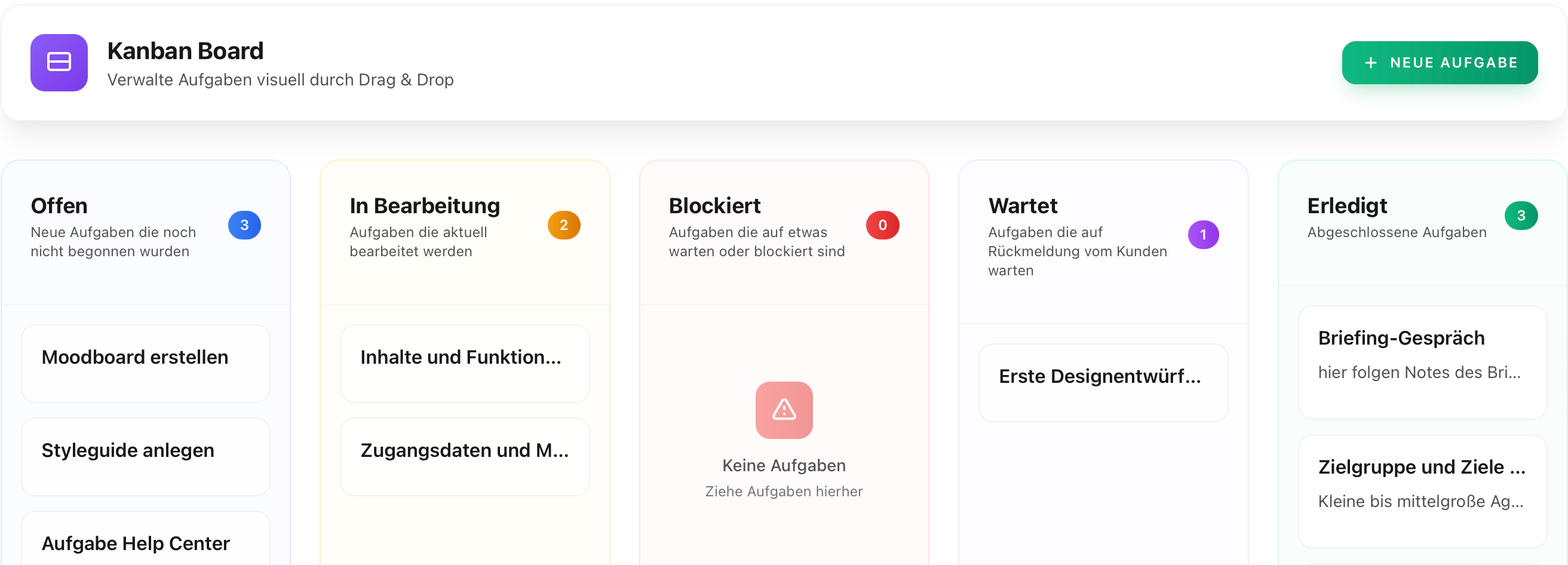
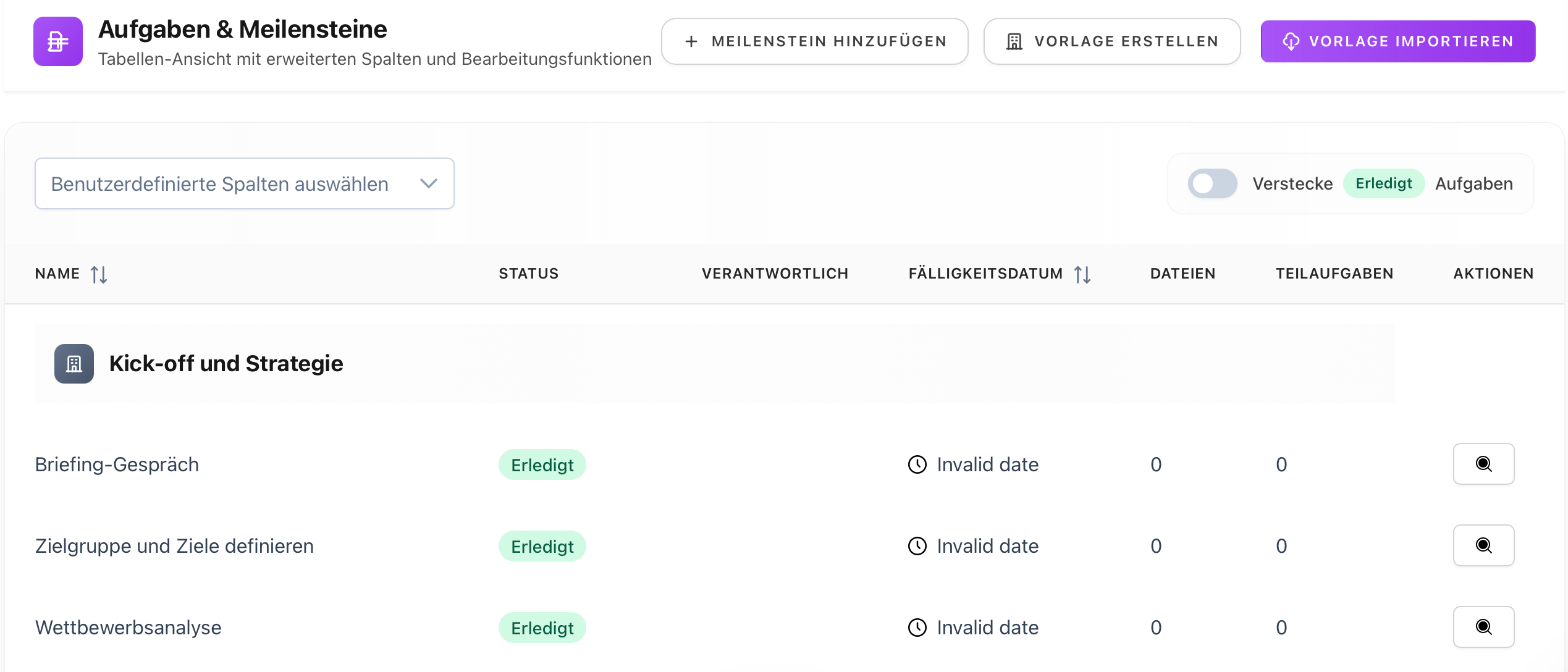
Tasks, board & table: Same content, different view
Proyex offers three different views of the same tasks:
Task view (list)
Board (Kanban)
Table view
These views:
always show the same tasks
only change the display, not the content
are primarily intended for your own organization
You can switch between them at any time without losing anything.
Revisions: Feedback, approvals, and changes
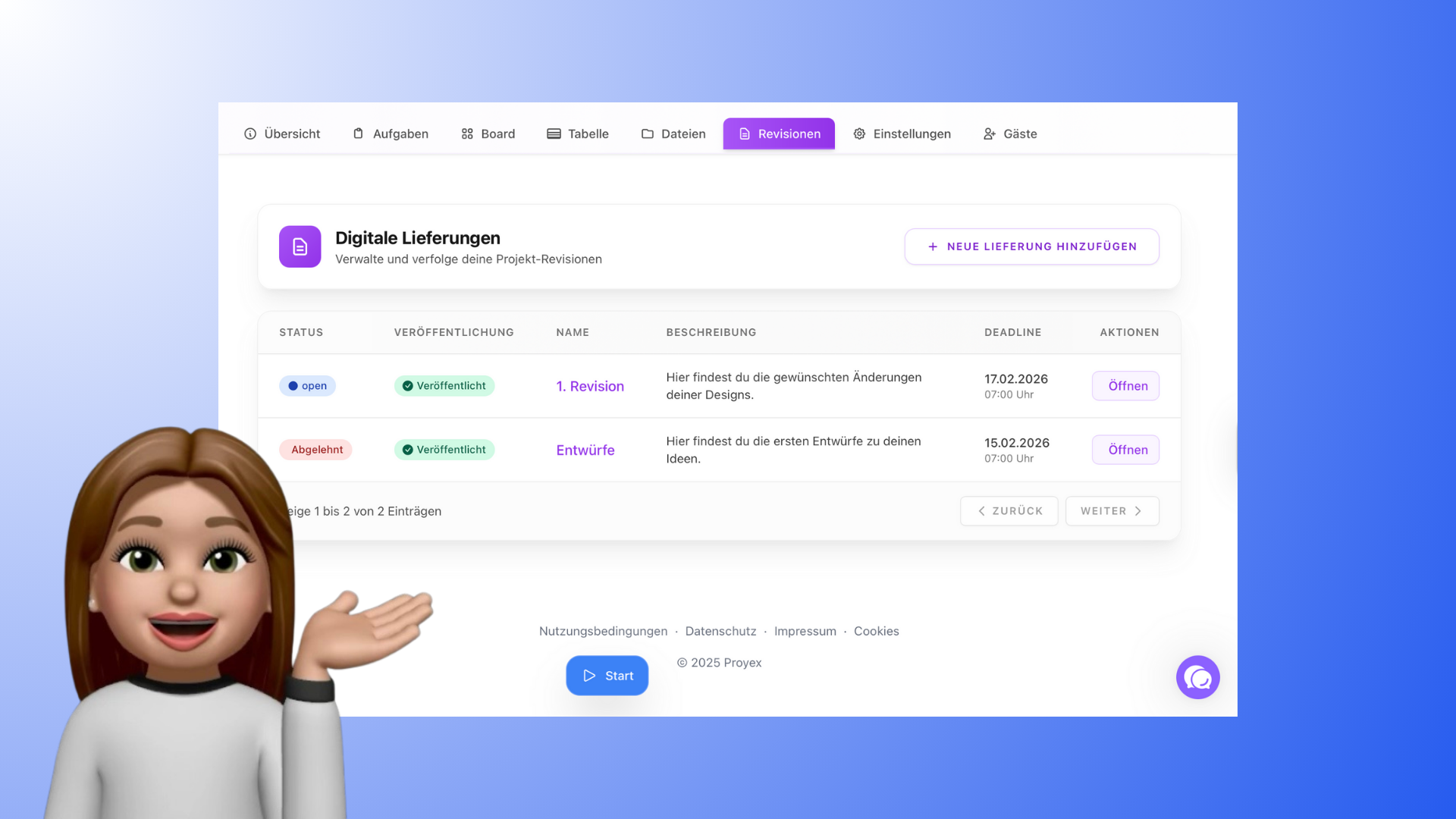
Revisions are a central component of Proyex, especially for customer projects.
They are used when:
Work results are complete
Feedback is to be obtained
Approvals or change requests are pending
Typical example:
You create design drafts and upload them as presentation files to the revisions.
The customer now has a defined period of time to:
Provide feedback
Request changes
or approve the result
If the customer does not respond within this period, the revision can automatically be considered approved.
The number of revision rounds allowed can be set individually.
After approval, you can permanently store the final files in the Files area.
Files: Central storage in the project
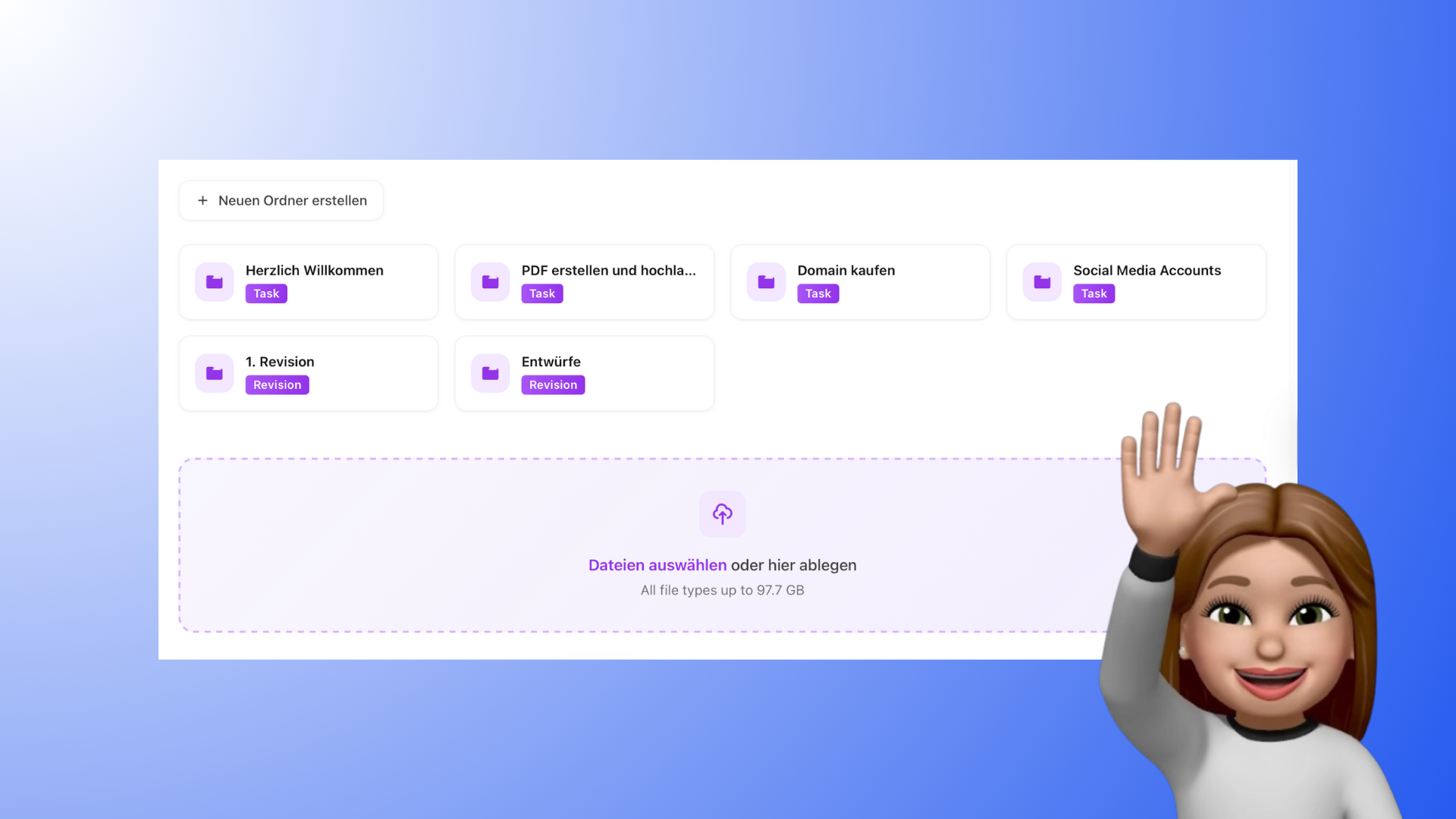
All project-related files are located in the Files area.
There you will find:
Final results
Approved files
Materials for further use
Files with associated folder structures can be uploaded by both you and your customers.
Dashboard: Your personal overview
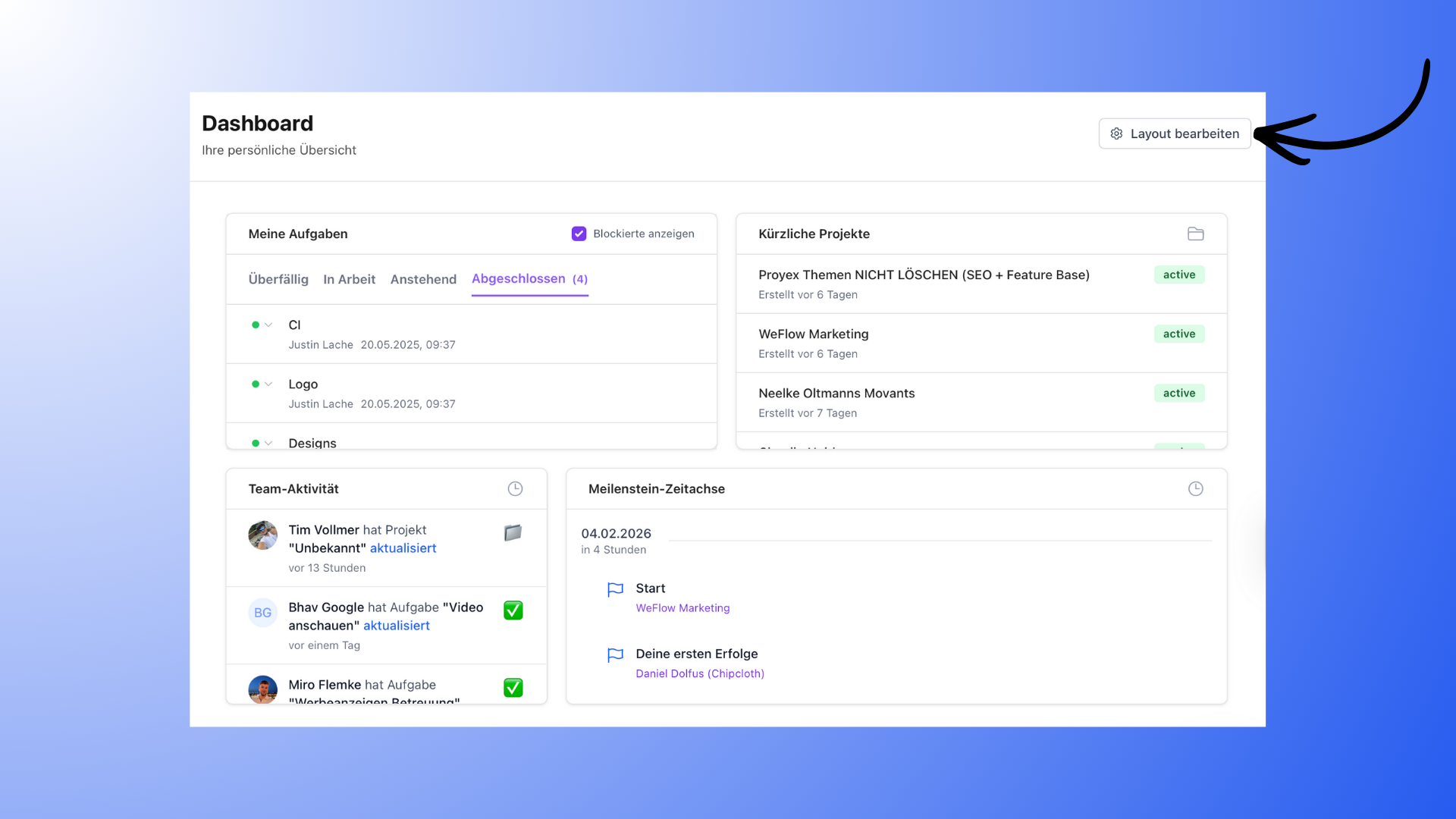
The dashboard is your starting point in Proyex and shows you what is currently important across all projects.
By default, you will see:
your tasks (e.g., overdue, in progress, pending, completed)
recent projects
team activities
a milestone timeline across all projects
The dashboard can be customized, e.g., with:
Task overviews
Project statistics
Resource utilization
Calendar views or quick actions
This allows you to build an overview that suits your working style.
What customers see in Proyex
Customers work in their own simplified project view.
They see:
all visible tasks
the status of tasks
milestones and deadlines
files and revisions
You cannot see:
Kanban boards
Table views
Internal planning
Customers can:
Change the status of tasks
Upload files
approve or reject approvals
Write comments on revisions
They cannot change the project structure itself.
This keeps everything clear and controllable.
👉 You can find more information on this in the article "Customer view in the project".