Navigation & structure of the interface
Written By Janina
Last updated 5 months ago
To help you quickly find your way around Proyex, it’s helpful to understand the tool’s basic structure and know how to navigate between the different sections of the interface.
Here’s how Proyex is structured
After logging in, you’ll land directly on your dashboard. From there, you can access all the important sections.
The central element of navigation is the left sidebar. It guides you through the entire tool and remains visible at all times, no matter where you are. You use this sidebar to navigate to all functions in Proyex.
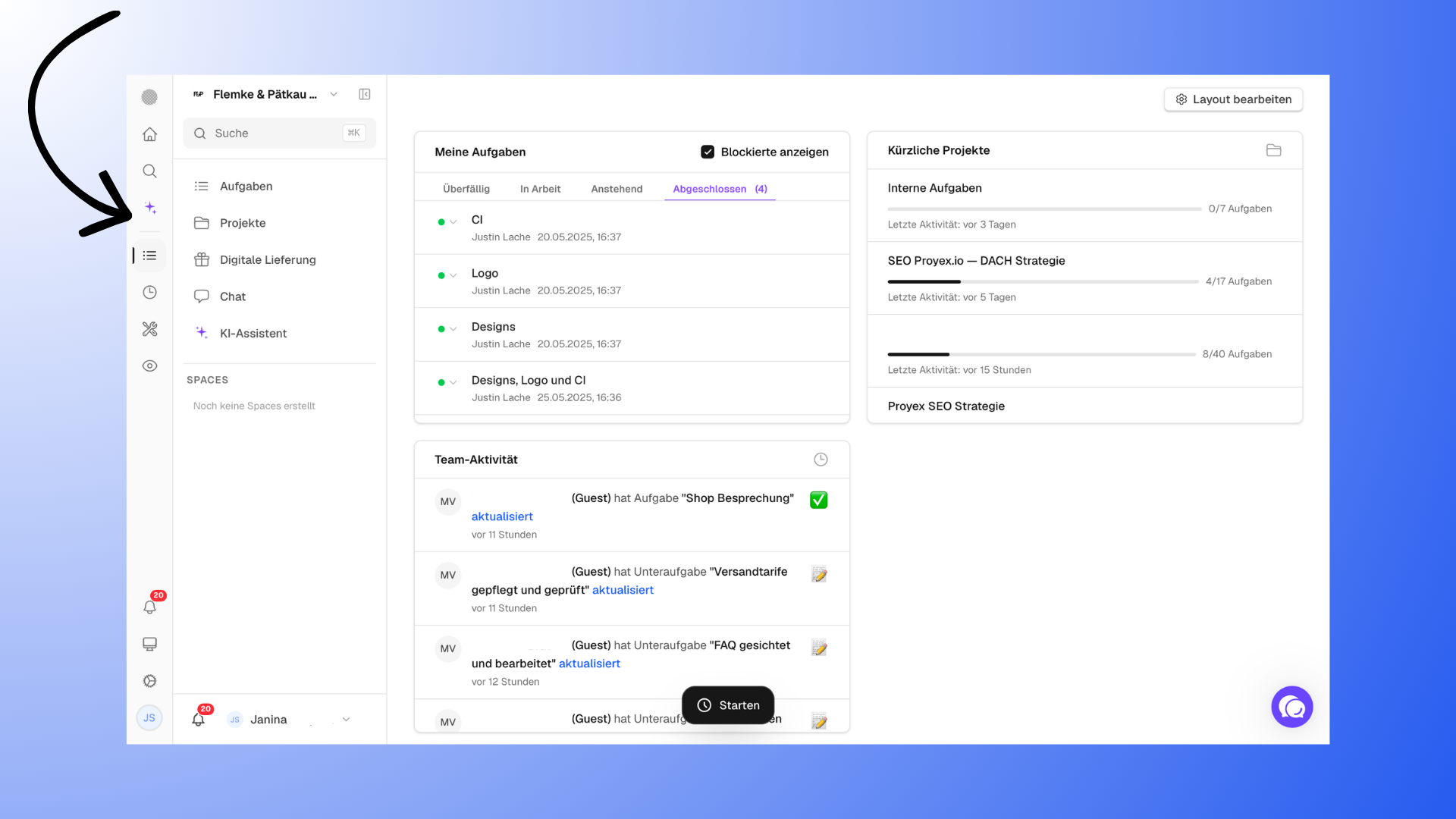
An overview of the most important sections
The sidebar is divided into several sections:
Dashboard – your personal home page
Search – find projects, tasks, files, or revisions
AI Assistant – supports you with various tasks
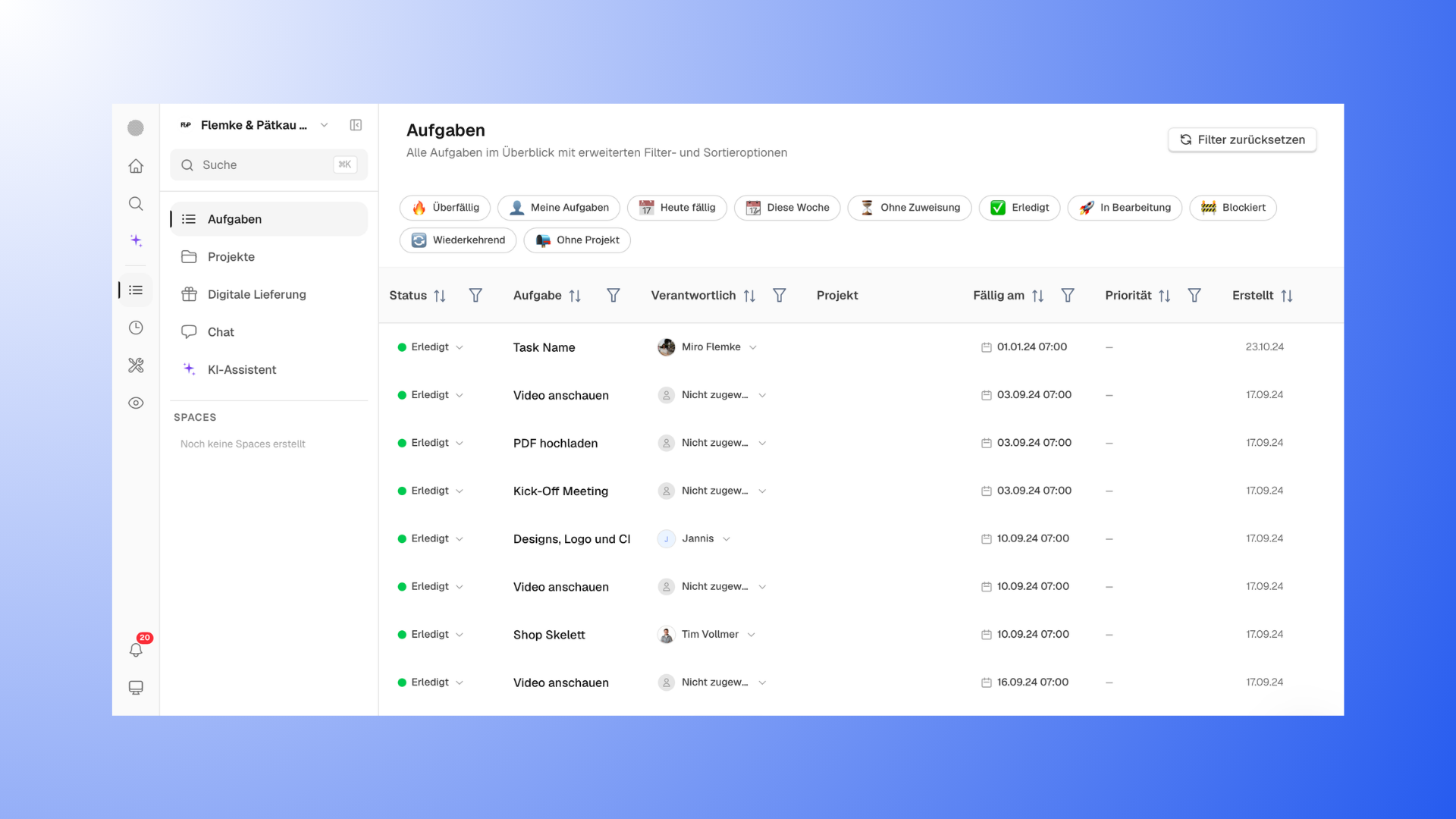
Under the Work section, you’ll find the most important work areas:
Tasks
Projects
Digital Deliverables
Chat
AI Assistant
Other areas include:
Time tracking
Administration (e.g., templates, media library, forms)
Guests (customer management)
This structure helps you quickly find your way around and jump directly to the area you need.
How to navigate through projects
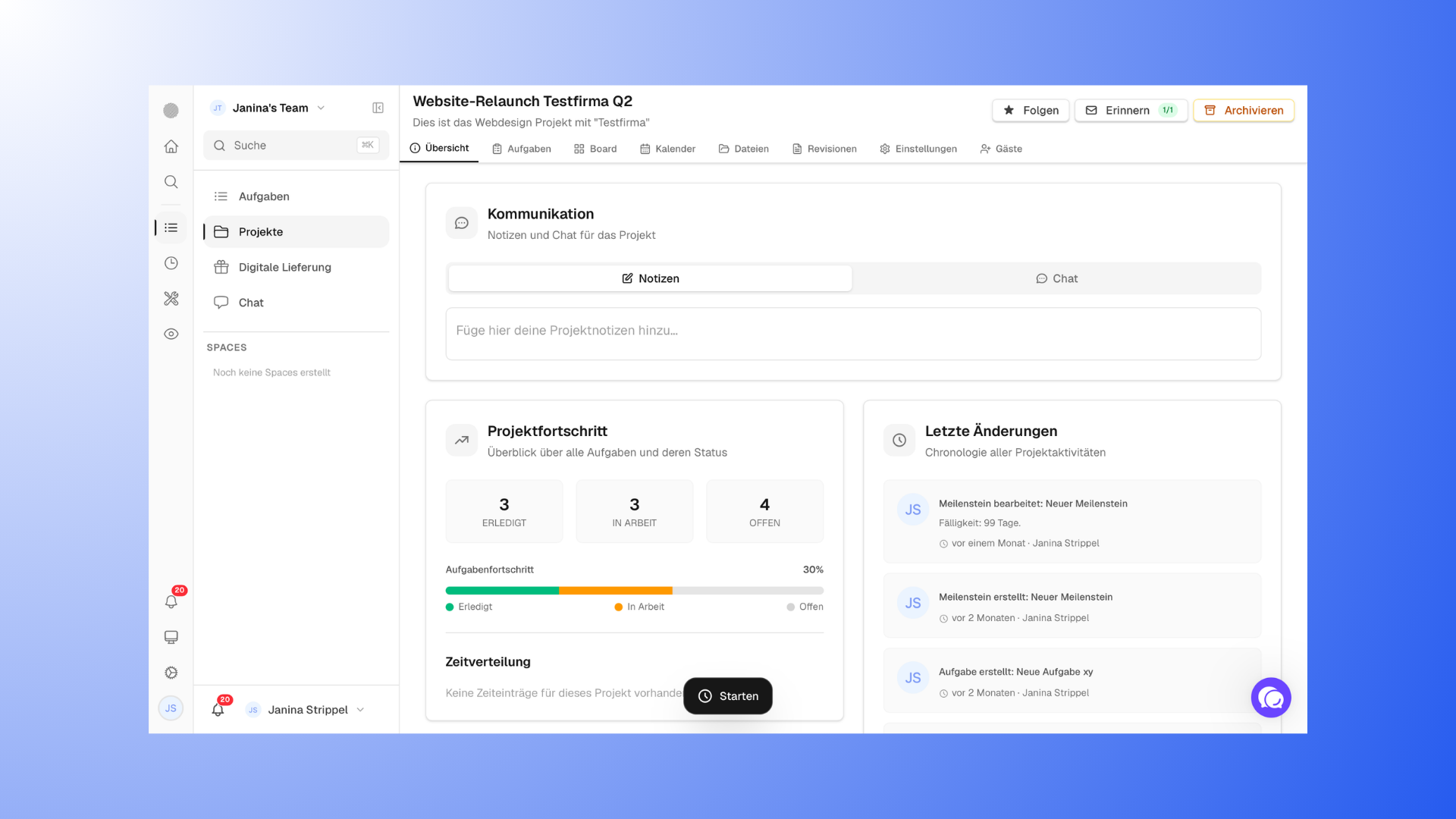
When you open a project, you switch to the project-specific view.
There you’ll find a separate navigation bar, this time at the top of the project.
This typically consists of:
Overview
Tasks
Board (Kanban view)
Calendar
Files
Revisions
Settings
Guests
This allows you to switch between different sections within a project without leaving the project.
Global vs. project-specific navigation
Proyex uses two navigation levels:
Global navigation (sidebar on the left):
Here you can switch between sections such as Dashboard, Projects, or Tasks.Project-specific navigation (at the top of the project):
Here you navigate within a specific project.
This separation ensures that you always know: Am I currently in the tool in general or in a specific project?
How to find your way around quickly
The left sidebar is your main point of reference. You can switch sections at any time using the icons and menu items.
If you can’t find something right away, you can:
use the search
or use the AI assistant
This way, you’ll get where you need to go quickly, even if you’re new to the tool.
The basic logic
Proyex combines two ways of working:
Project-based:
You work within a project and keep track of all tasks there.Task-based:
You work across projects with tasks and focus on deadlines and priorities.
Which approach works best for you depends on your workflow. Many users combine both approaches.