Edit templates
Written By Janina
Last updated 5 months ago
Have you created a template and later realized that your workflow has changed or that something is missing?
Why should you edit templates?
Processes evolve in day-to-day work. A template can always be optimized further.
Common reasons:
You want to add new tasks or intermediate steps
a milestone is unnecessary or too complex
Your workflow has changed
you want to make the structure clearer and more efficient
Example:
You’re using a design template and notice that an important intermediate step is missing; you can simply add it later.
Where can you find your templates?
You can find all templates in the “Templates” section of the left-hand menu. Click on “Templates” to see an overview of your existing templates.
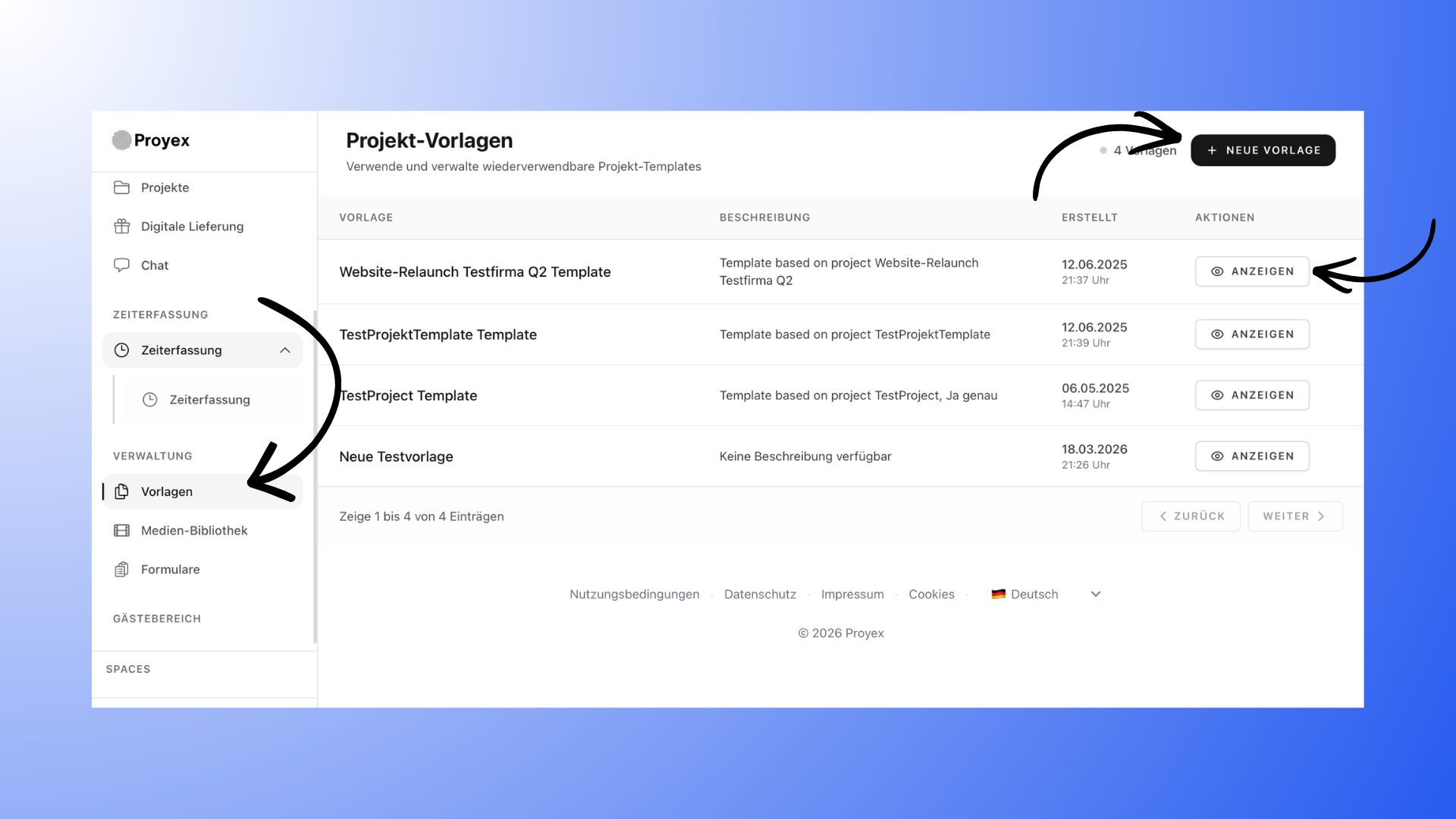
Editing a template
Step 1: Select a template
Open the "Templates" section and click on the desired template.
Step 2: Make changes
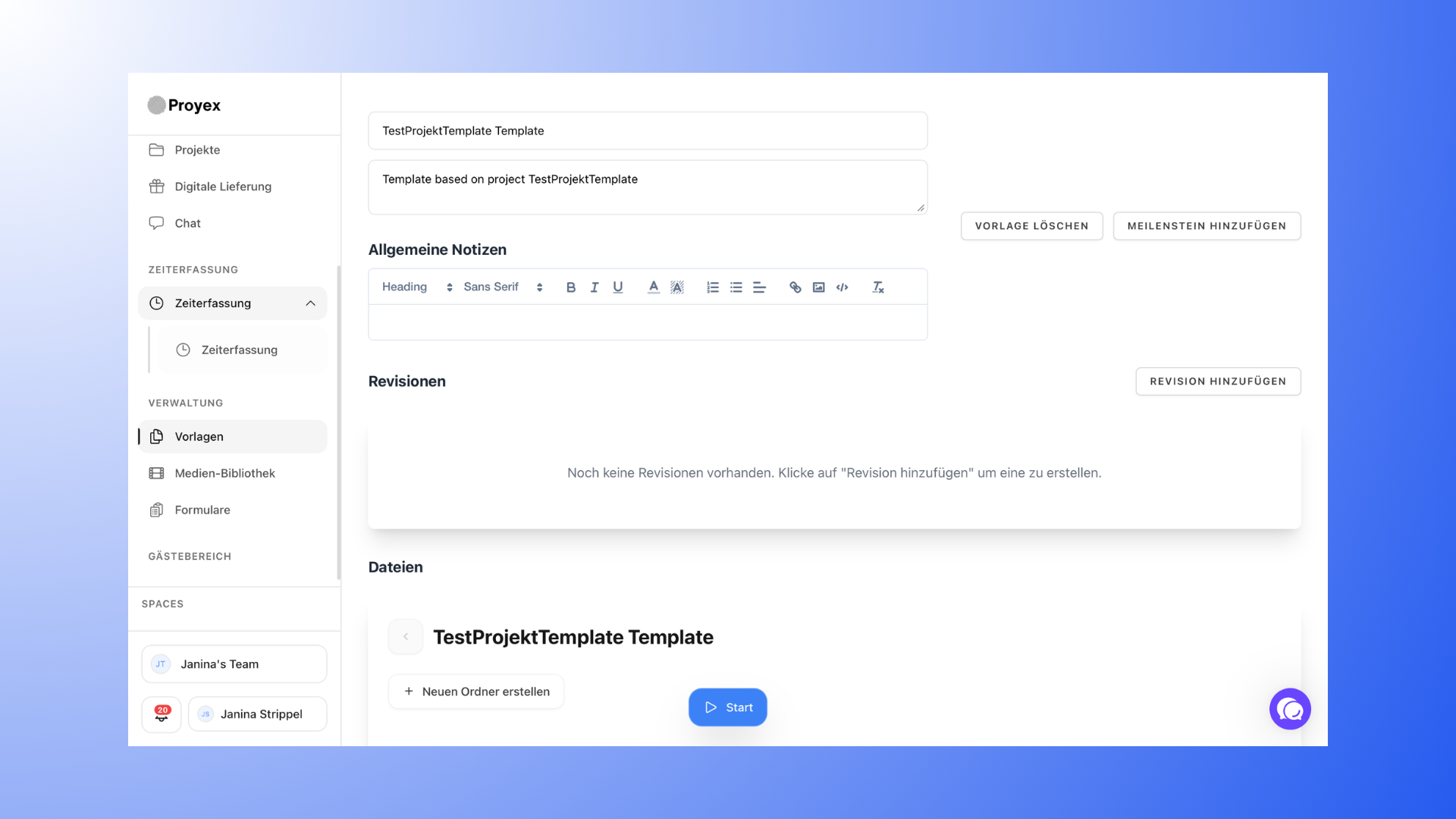
You’ll be taken directly to the details view where you can edit your template.
Among other things, you can:
Customize the name and description
Add general notes
Create or delete milestones
Edit, add, or organize tasks
Customize task details:
Description
Responsibilities
Status
Subtasks
Due Dates
Priorities
Add files and folders
Add revisions
Step 3: Changes are saved automatically
All changes are saved automatically; you don’t need to confirm anything.
If you no longer need a template, you can delete it at any time.
Impact of changes
Changes to a template only affect future projects. Existing projects remain unchanged.