Language, time zone and basic options
Written By Janina
Last updated 5 months ago
At Proyex, you can customize some basic settings for your own account. These include, for example, the user interface language, your time zone, and personal account settings.
These settings apply only to your own account and do not affect the settings of other team members.
Change Language
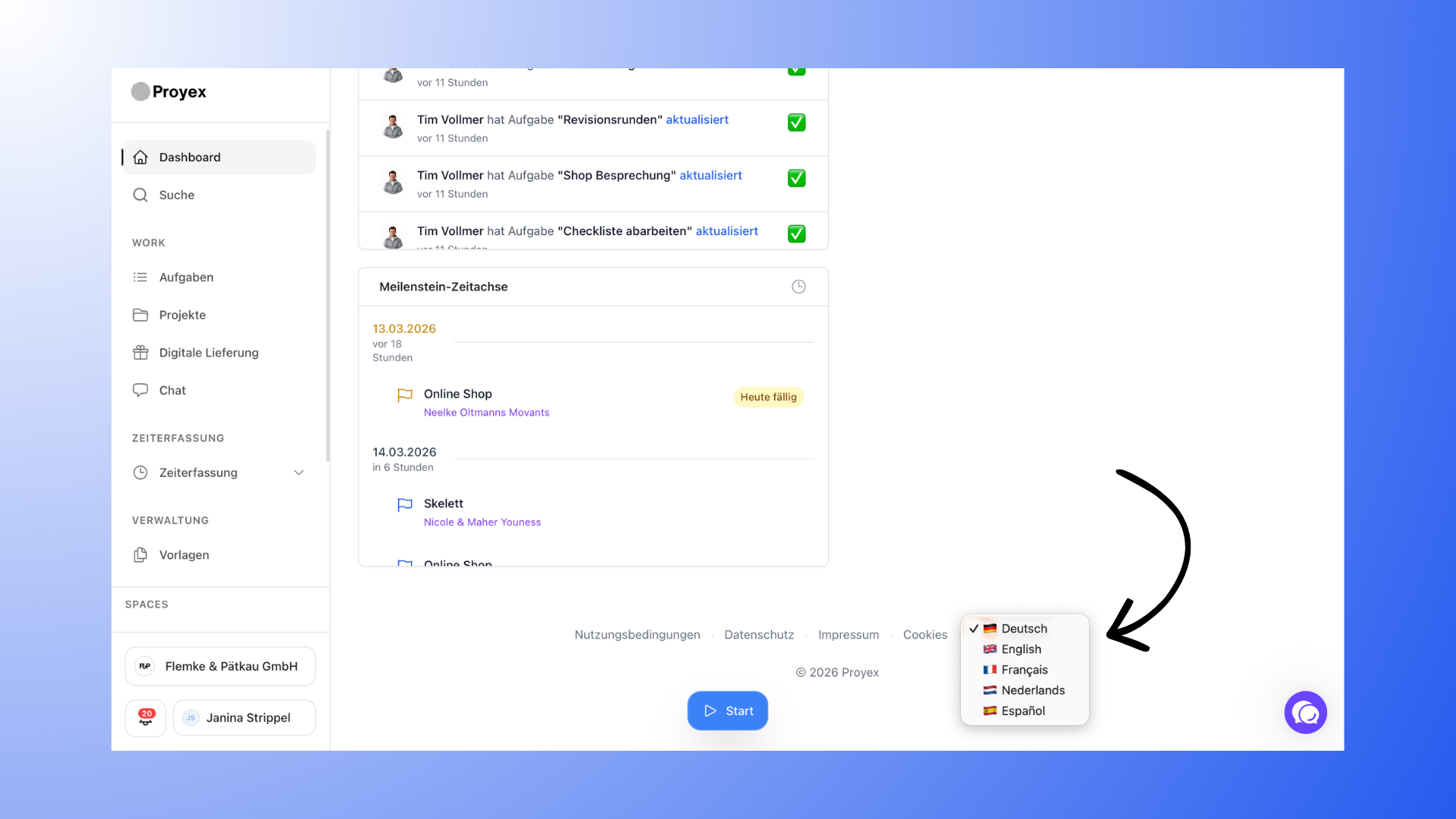
You can change the user interface language directly in the application footer.
Here’s how it works:
Scroll all the way to the bottom of the application.
Select the desired language in the footer.
The interface will then be displayed in the selected language.
Currently available languages are:
German
English
Dutch
French
Spanish
The language selection primarily affects the user interface in the tool.
Set time zone
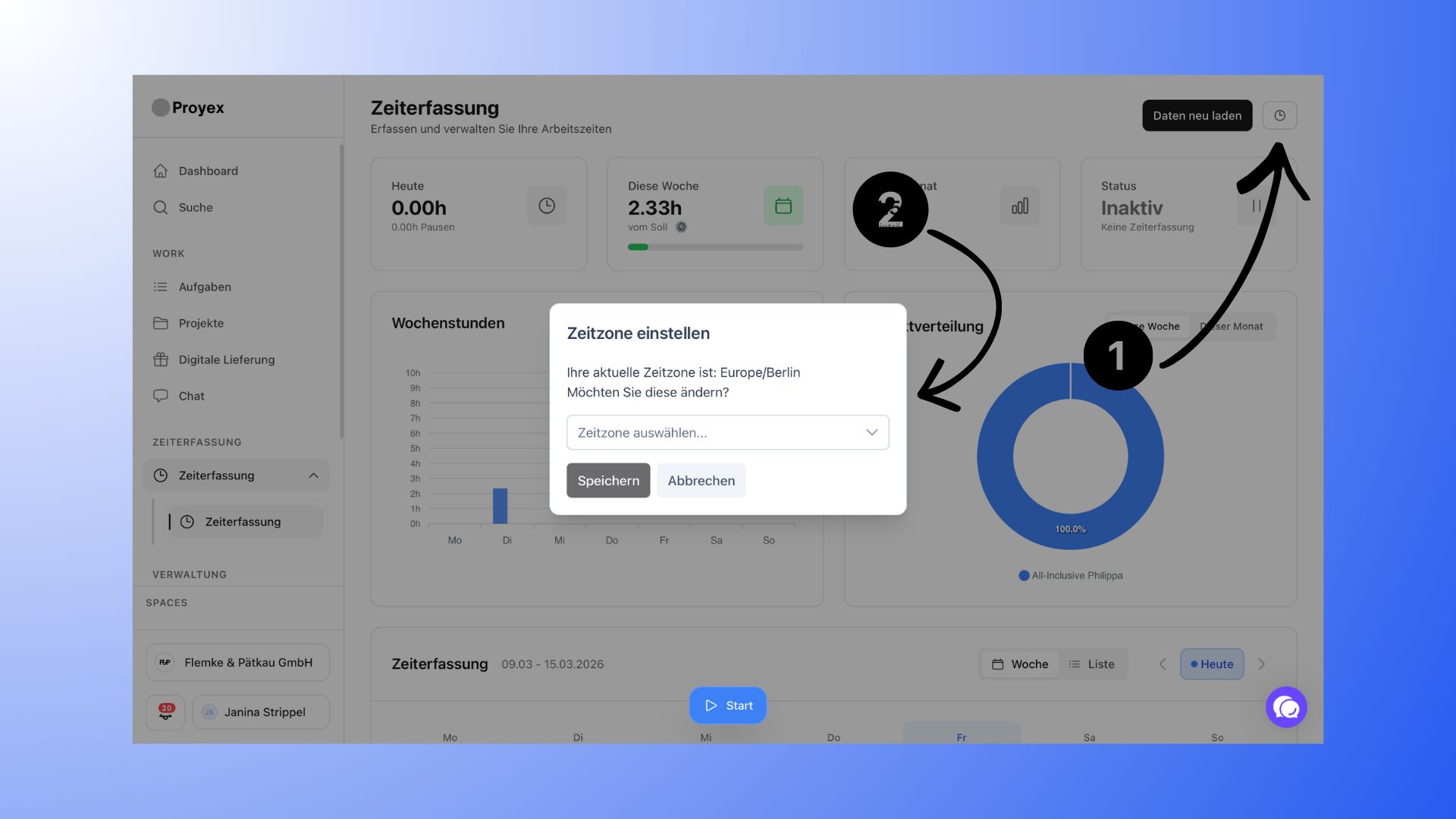
You can set your personal time zone in the Time Tracking section.
Here’s how to find the setting:
Open the Time Tracking section.
Click the clock icon in the top right corner.
Select your desired time zone.
The time zone primarily affects how your time tracking is displayed.
Each person on the team can set their own time zone. This setting does not affect other users on the team.
Manage account settings
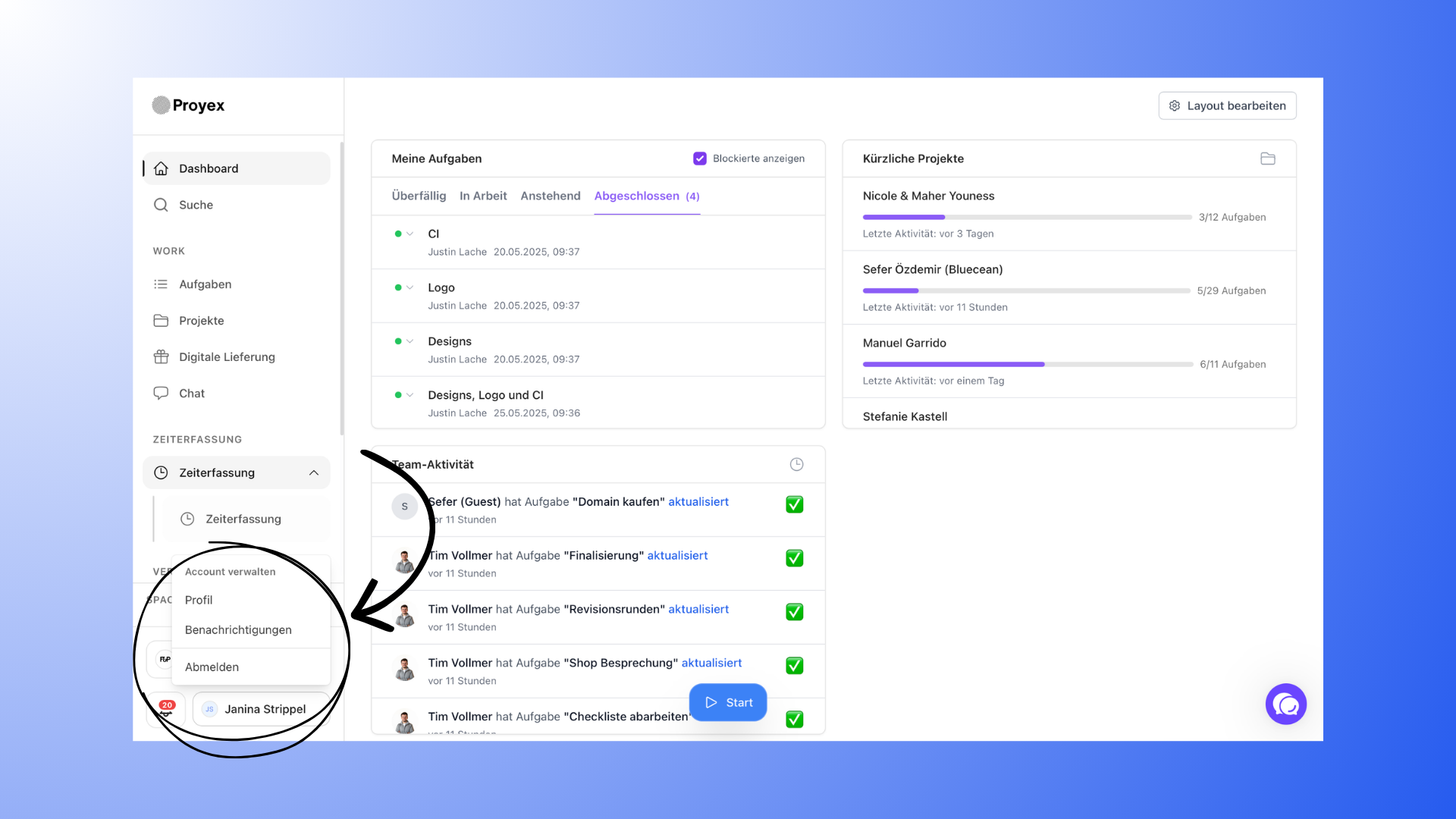
You can find additional basic settings in your account settings.
Here’s how to get there:
Click on your name in the bottom left corner.
Select Manage Account.
There you’ll find various sections.
Profile
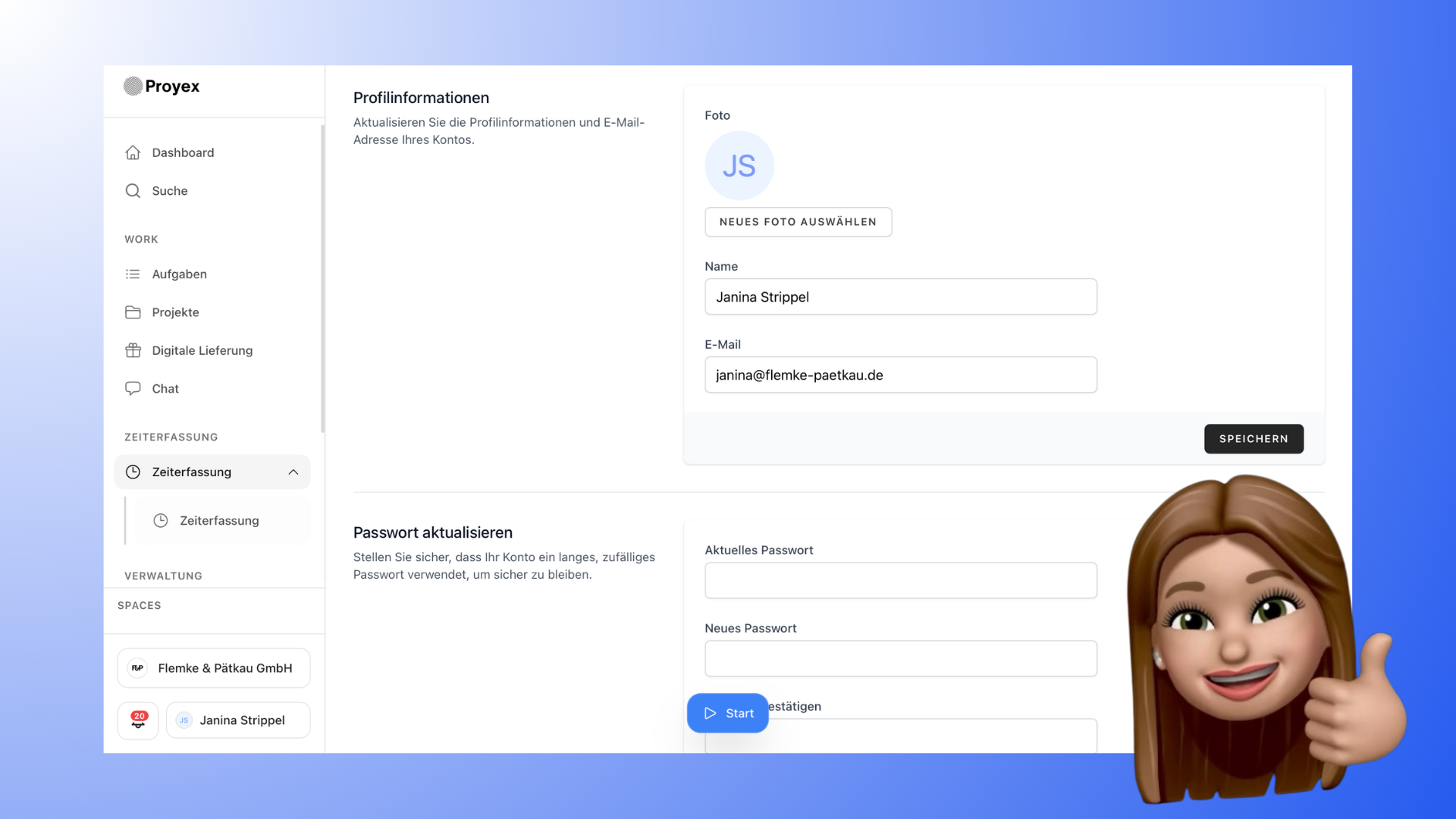
In the Profile section, you can customize your personal account information.
This includes:
Change name
Update email address
Add or change profile photo
Update password
You'll also find additional account features here, such as:
API tokens
Connected apps
Two-factor authentication (2FA)
Active browser sessions
Delete account
Notifications
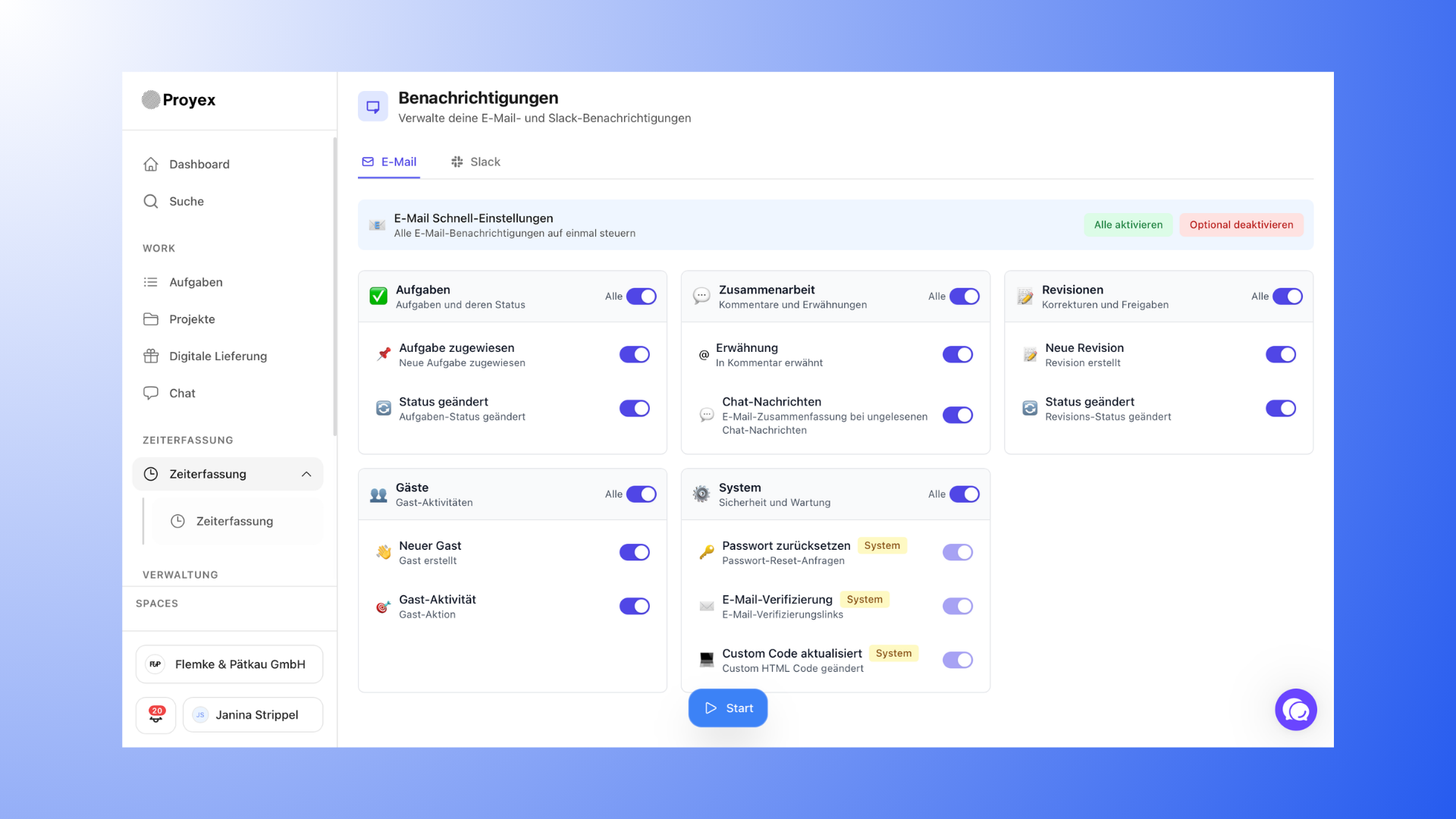
In the Notifications section, you can specify which events you want to be notified about via email.
For example:
Tasks
Project collaboration
Revisions
Guest activities
System notifications
This way, you can decide for yourself which updates you want to receive via email.
Team settings
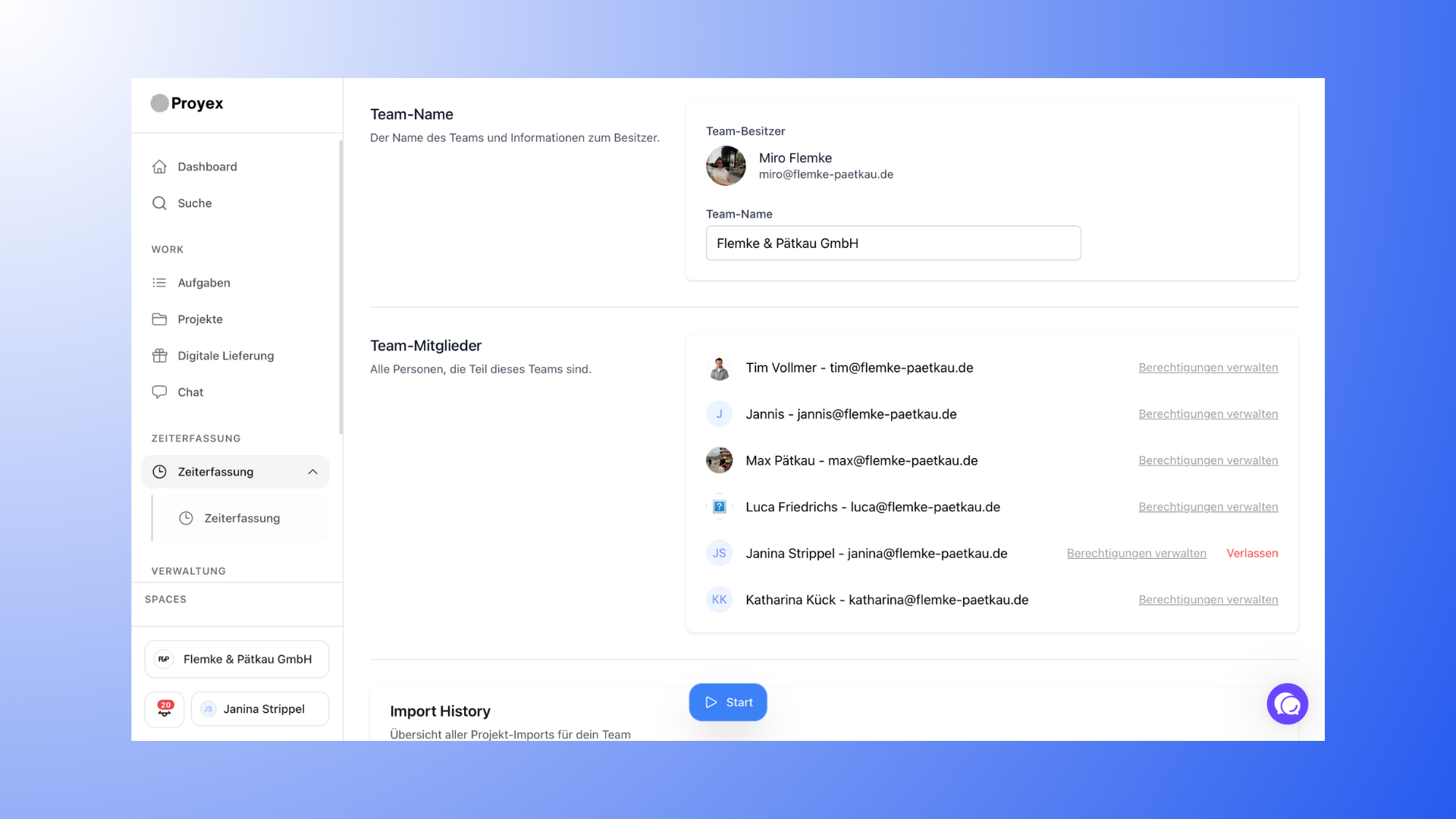
In addition to your personal account settings, there are also team settings. You can access these via the team name in the bottom-left corner of the menu.
There, for example, you can:
view or change the team name
Manage team members
Depending on your plan or role in the team, additional features may be available here.