Key Terms Explained in Proyex
Written By Janina
Last updated About 1 month ago
If you're new to Proyex, you'll quickly come across certain terms. These terms form the basis for how projects are organized in the tool.
Project
A project is the central workspace in Proyex.
This is where all content related to a specific project is organized, for example:
- Tasks
- Milestones
- Files
- Revisions
- Guests (customer accounts)
Tasks can be displayed in various views within a project, for example:
- List view
- Kanban board
- Table view
A project can be used both internally and for collaboration with customers. A project only becomes a customer project once a customer is invited.
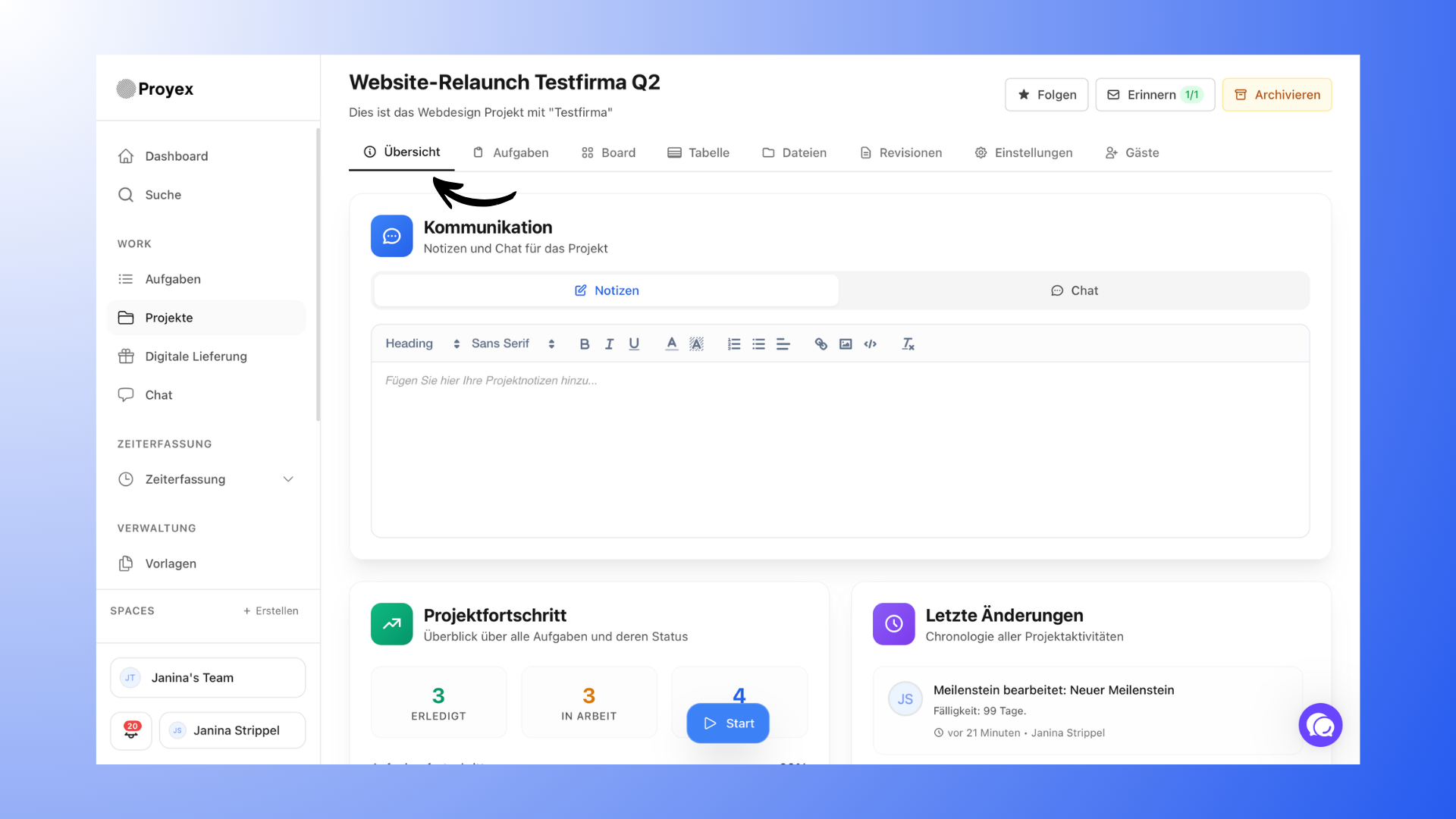
Milestone
A milestone represents a larger project phase.
It serves to group several related tasks together and to better structure a project’s progress.
Characteristics of milestones:
- contain multiple tasks
- always have a due date
- can run in parallel
Milestones help you break down complex projects into manageable sections.
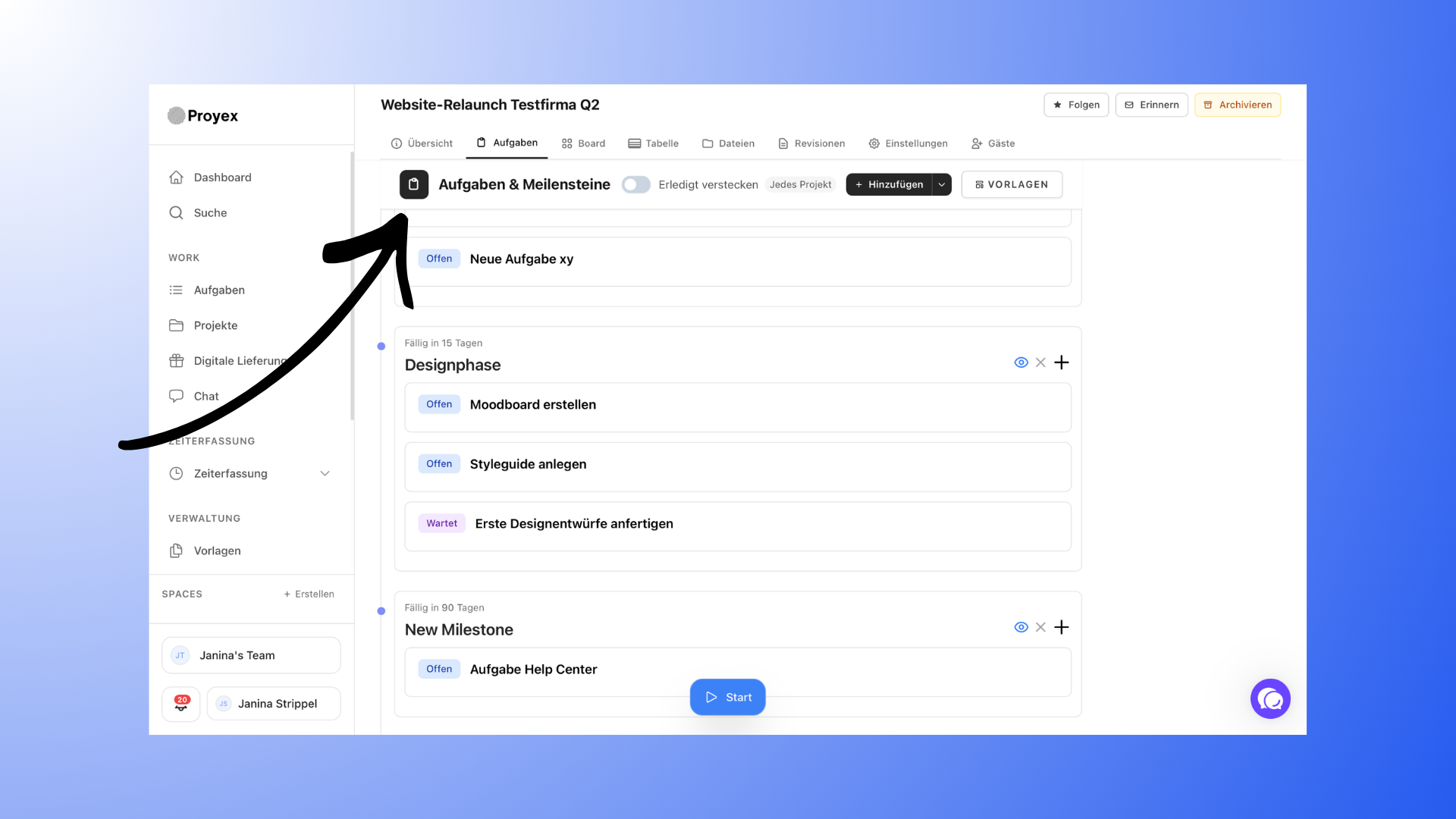
Task
A task is a specific step within a project.
Each task belongs to a project and can optionally be assigned to a milestone. It can contain various pieces of information, such as:
- Description
- Person in Charge
- Files
- Due date
- Status
The status indicates the current progress of the task.
Possible statuses are:
- Open
- In Progress
- Completed
- Blocked
- On hold
Tasks are the central element of daily work on the project.
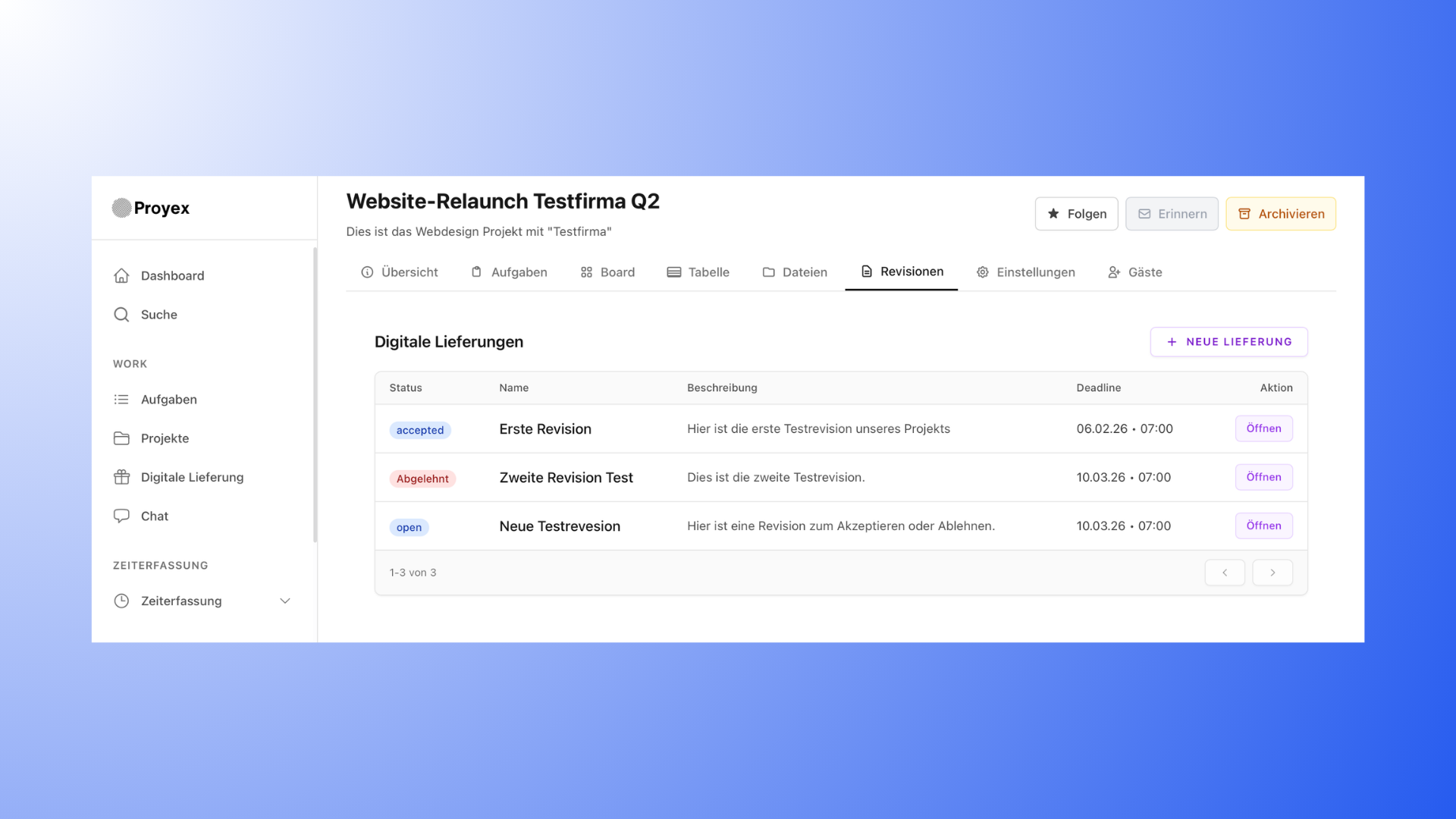
Revision
A review is a submission to the client for review and approval.
It is used when work results are to be presented or feedback is to be obtained.
Revisions include:
- a description of the deliverable
- one or more files
- a deadline for feedback
The client can comment on, approve, or reject a revision. All changes are documented in the change log.
Files
Project-related documents and deliverables are stored in the Files section.
Typical contents include, for example:
- Interim results of a project
- Final project files
- Materials or briefings from the client
- Existing assets such as logos or PDFs
Files can also be organized into folder structures to keep larger projects well-organized.
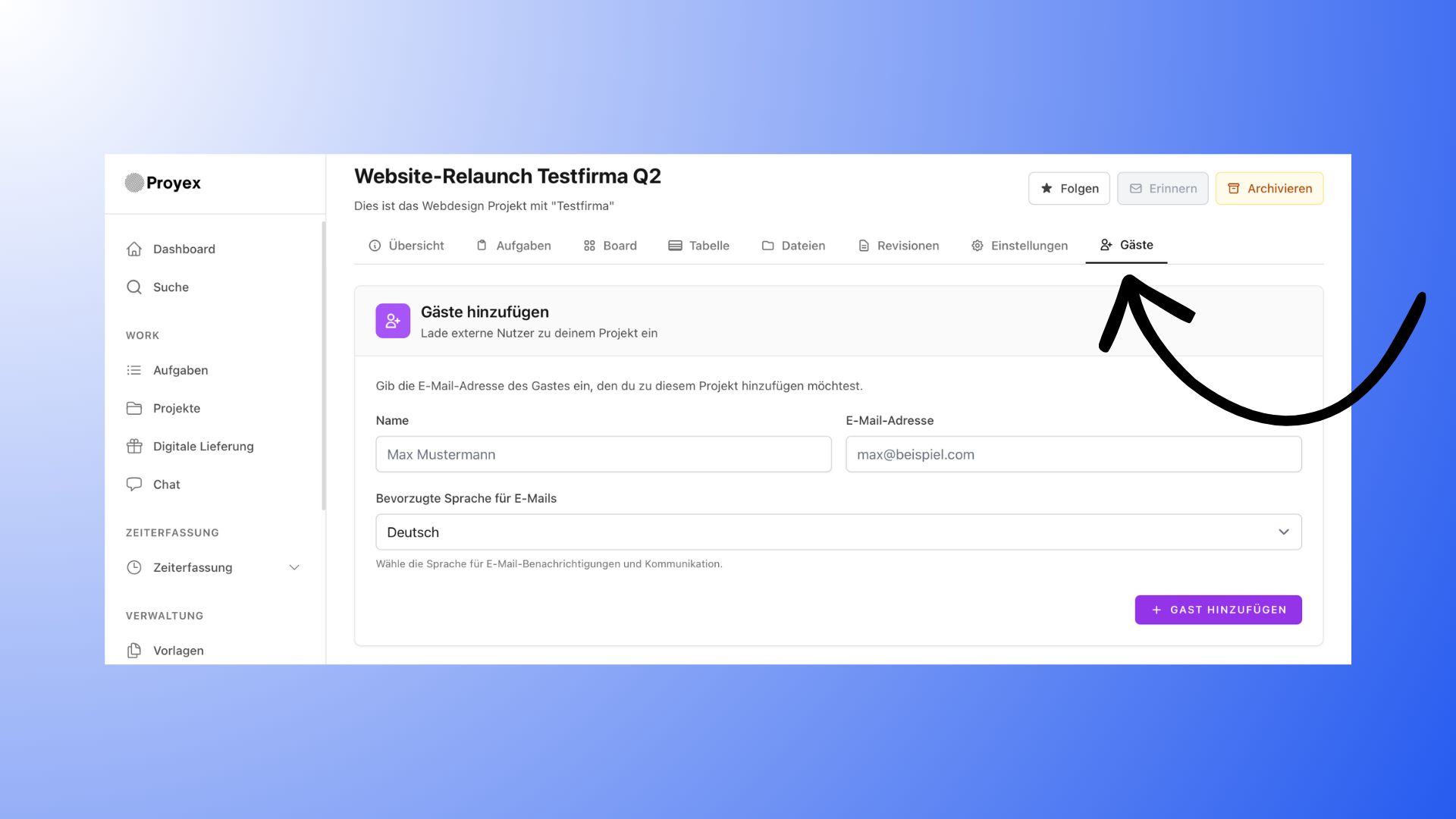
Guests (Clients)
Guests are external individuals who are granted access to a project. These are typically clients.
They can:
- Change task status
- Upload files
- Comment on revisions
- Approve or reject approvals
Guests do not need to register themselves. They will receive an invitation via email and can access the project through that link.
Dashboard
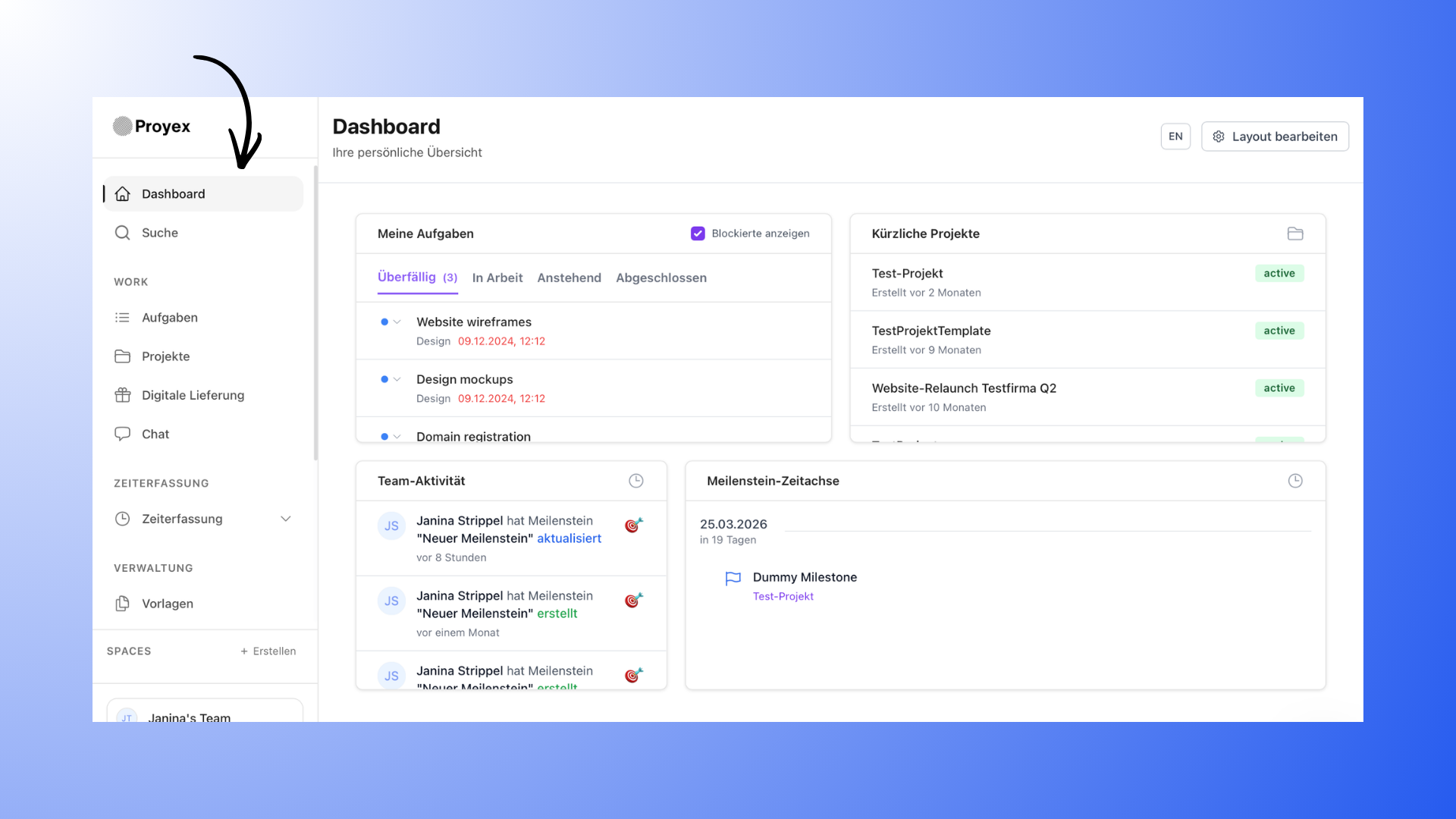
The dashboard provides a central overview of your work in Proyex.
By default, it shows:
- your tasks (overdue, in progress, pending, completed)
- recent projects
- team activities
- a milestone timeline
The dashboard can be customized so you see exactly the information that’s relevant to your workflow.
Status
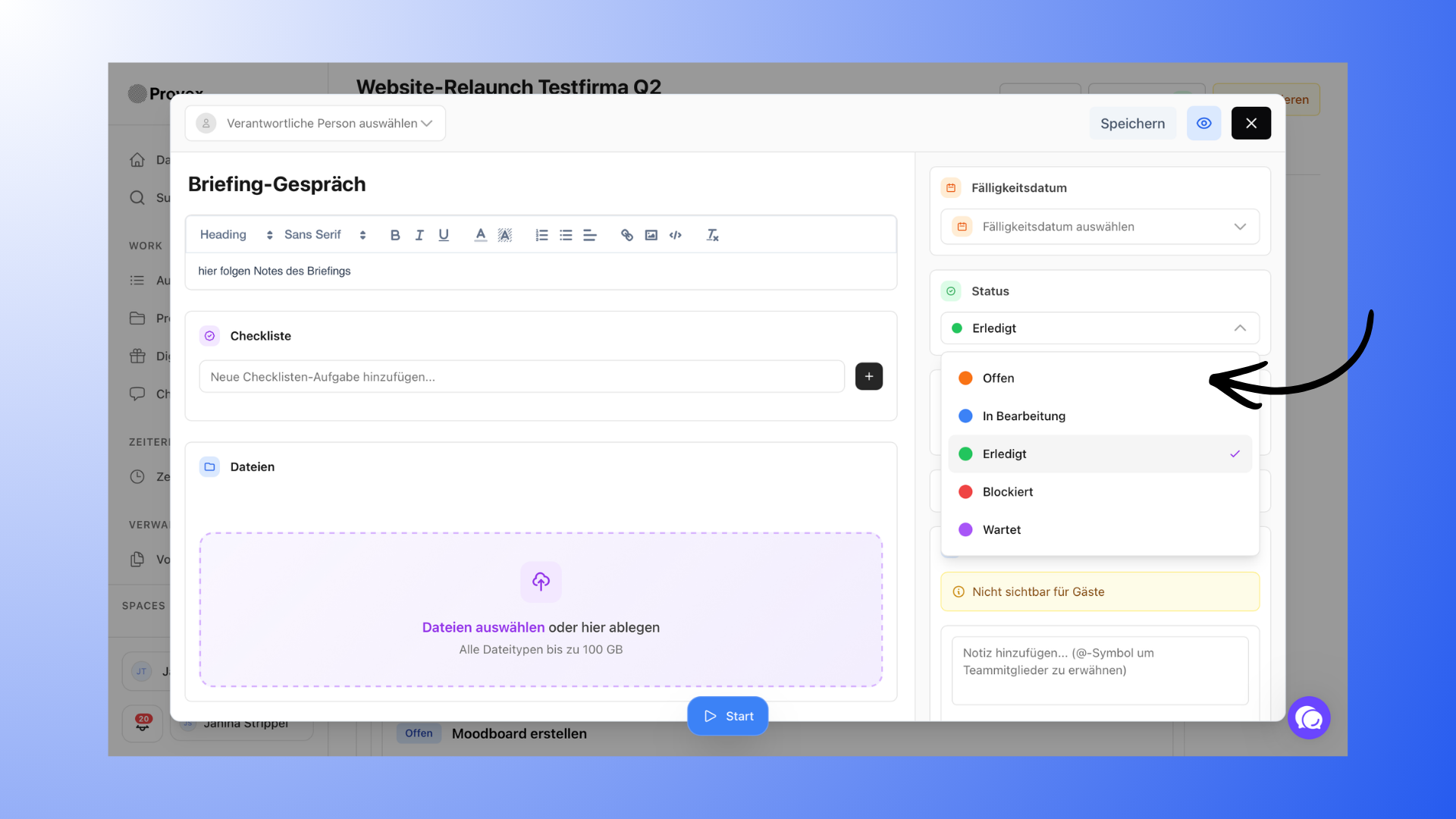
The status indicates a task’s current progress. It helps you and your team keep track of the project’s status.
Possible statuses are:
- Open
- In Progress
- Completed
- Blocked
- Pending
Status changes automatically show how a project is progressing.
Templates
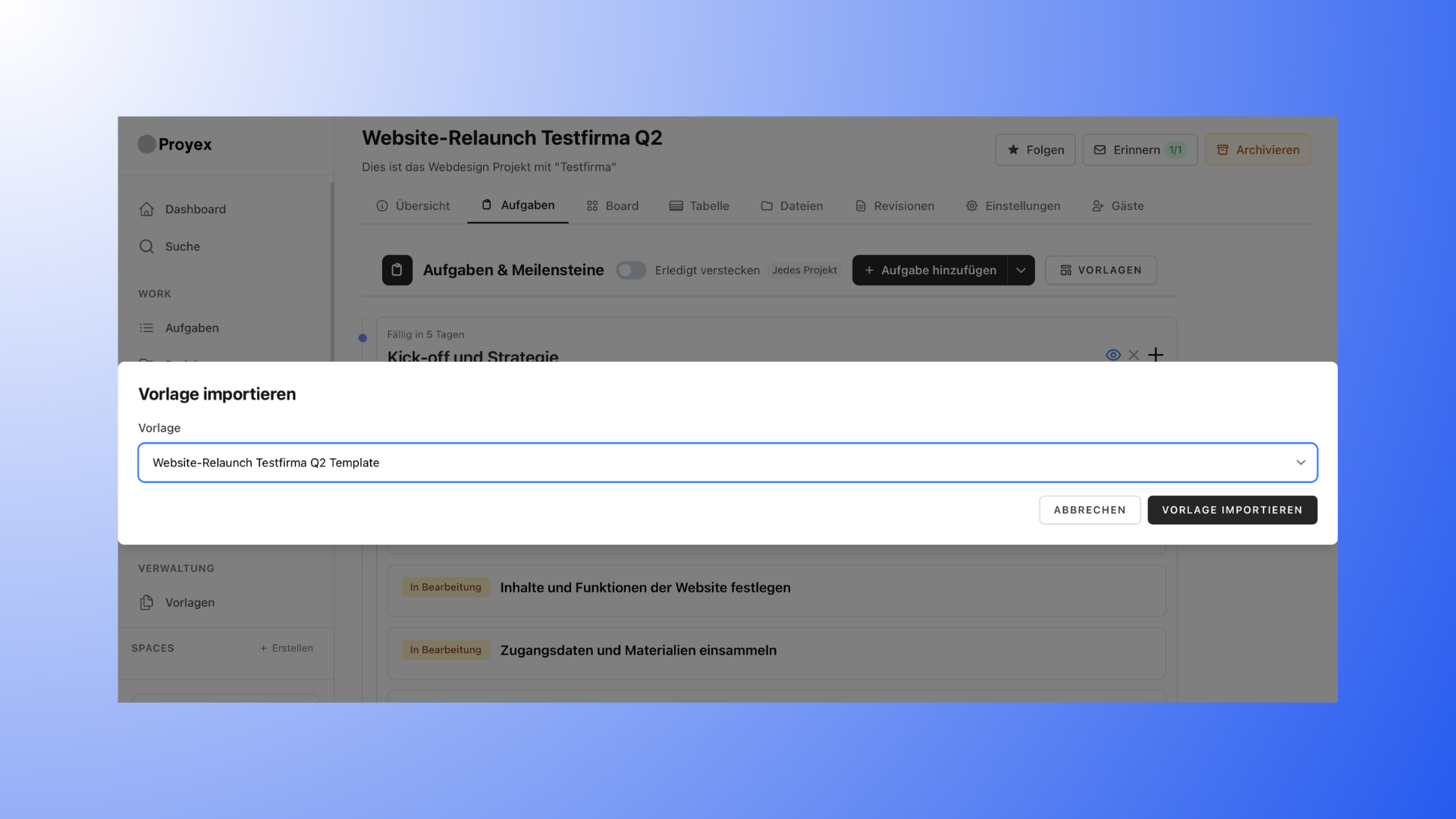
Templates are project templates.
They help you get recurring projects up and running faster without having to recreate all the tasks and structures from scratch every time.
Typical examples include:
- Web design projects
- Branding projects
- Social media projects
With templates, you can save standardized project workflows and reuse them at any time.
Tags
Tags are labels you can use to categorize projects.
They help you organize projects according to specific criteria, such as:
- Project Type
- Client
- Service
- Priority
This makes it easier to filter projects and find them faster.
Time Tracking
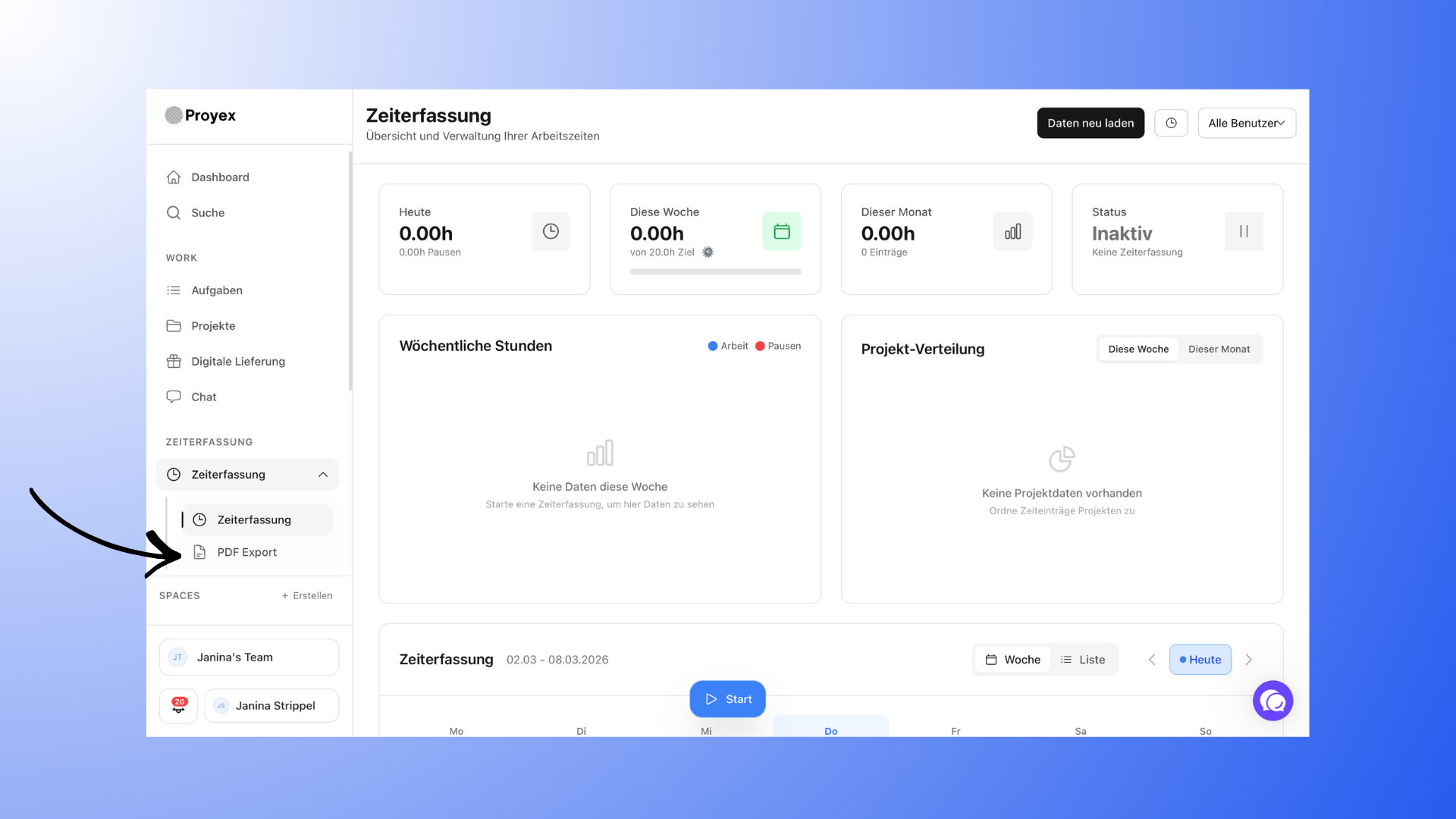
With time tracking, you can record your working hours directly within the project.
This helps you:
- understand the actual effort required for a project
- track working hours transparently
- calculate project costs more accurately
The recorded times can be assigned to specific projects or tasks. Additionally, the times can be exported as a PDF.
CRM (Pipeline, Deal, Contact, Company)
The CRM (Customer Relationship Management) is the sales module in Proyex.
Key terms:
- Pipeline — A sales process with multiple stages (e.g., Lead → Qualified → Quote → Won).
- Deal — A single sales opportunity with a value, probability, and closing date.
- Contact — A point of contact at a company.
- Company — A firm or organization to which contacts and deals are assigned.
- Activity — A logged action such as a phone call, email, meeting, or follow-up.
Automation (Flow)
An automation (also called a flow) is a visual workflow that automatically performs specific actions.
A flow consists of:
- Trigger — The event that starts the flow (e.g., new task, schedule, webhook).
- Condition — A filter that checks whether the flow should continue.
- Action — The task that is performed (e.g., create a task, send a notification).
Custom Field
A custom field is an additional data field that you can create yourself for tasks.
Available types include Text, Dropdown (with colors), Person, and Date. Up to 20 fields can be created per team.
Webhook
A webhook is an automatic notification that Proyex sends to an external service when a specific event occurs (e.g., task created, deal won). Webhooks are often used for integration with Zapier or Make.
Project Overview
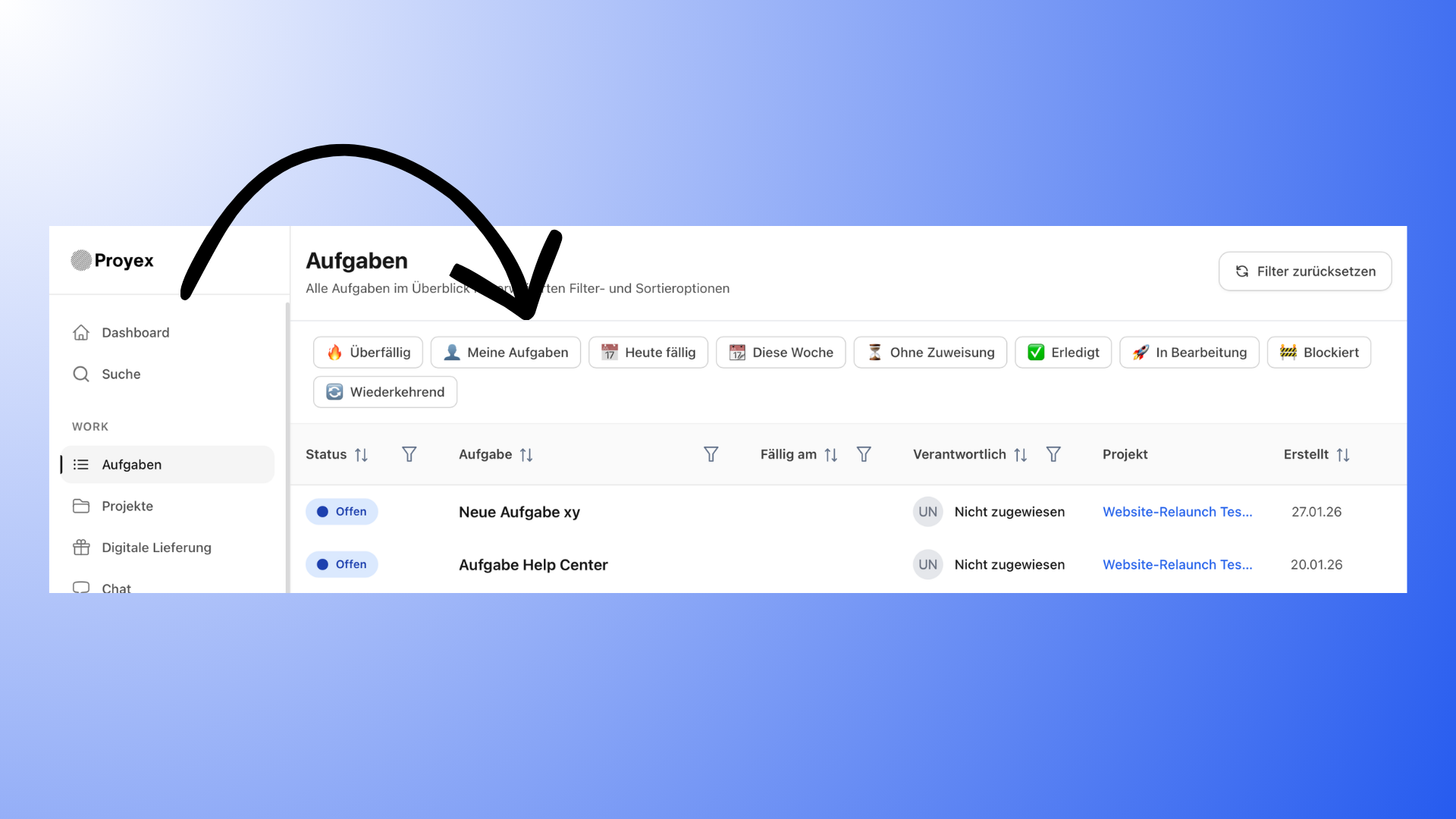
The Project Overview shows you all projects in your workspace.
Here you can:
- Browse projects
- Filter projects
- Quickly switch between projects
This is especially helpful when you’re working on multiple projects at the same time.
🔗 Related articles
- “How is Proyex different from other tools?” — https://proyex.featurebase.app/de/help/articles/9508000-wie-unterscheidet-sich-proyex-von-anderen-tools
- “Language, Time Zone & Basic Options” — https:// proyex.featurebase.app/de/help/articles/6509465-sprache-zeitzone-und-basisoptionen
- “Set Up Your Team” — https:// proyex.featurebase.app/de/help/articles/11821595-richte-dein-team-ein