Understanding project settings
Written By Janina
Last updated 5 months ago
Every project is different, so you can customize the settings.
With the right settings:
you’ll keep track of your projects
you’ll work in a more structured way
you can adapt the project to your workflow
Where to find the project settings
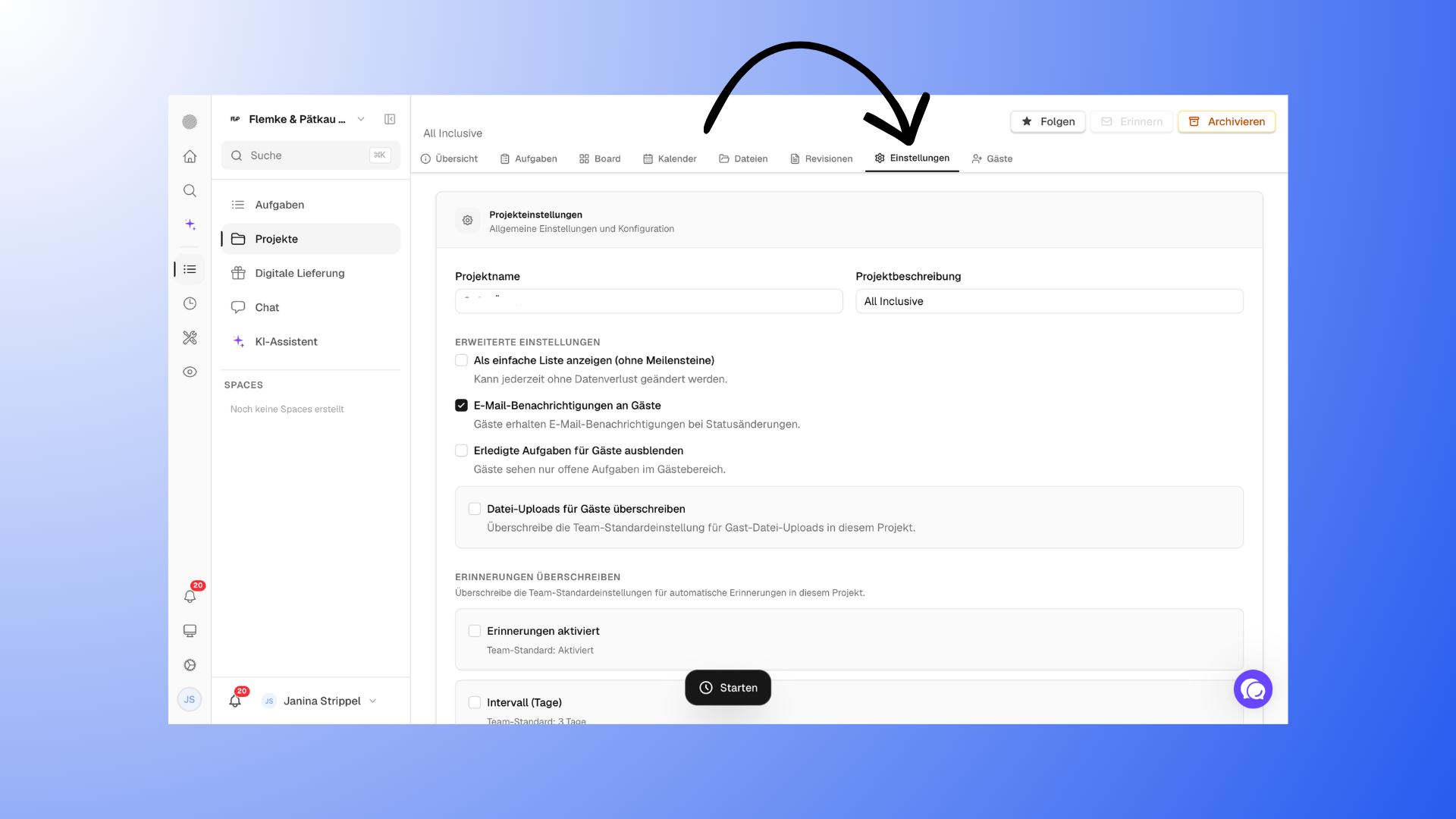
Open a project and go to the “Settings” section at the top of the menu.
This is located in the top navigation bar next to sections such as Tasks, Board, or Calendar.
What you can customize in the project settings
General Information
You can set basic information about the project:
Project name
Project description
Tip:
Use the name for the client’s name and the description, for example, for the package booked or important details. This way, you can immediately see what the project is about.
Advanced Settings
Here you can customize the project’s behavior:
Simple list without milestones
Displays tasks as a simple list instead of in milestonesEmail notifications for guests
Clients are automatically notified of changesHide completed
tasks for guests Clients only see open tasksControl file uploads
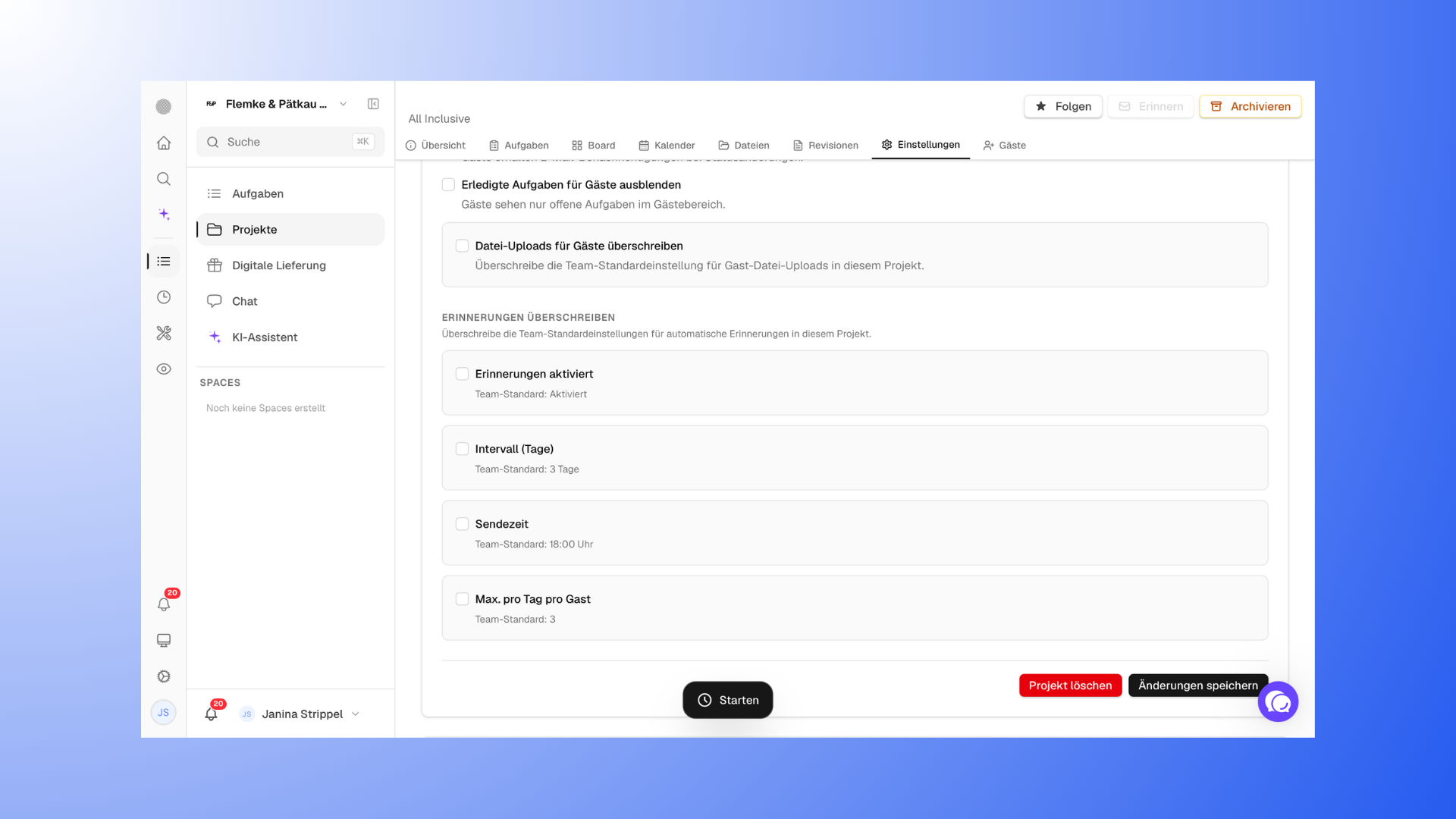
for guests Overrides the team's default settings for this projectCustomize reminders
You can set:whether reminders are enabled
how often they are sent
at what time
how many are allowed per day
These settings help you customize the workflow for each project.
Project Image & Display
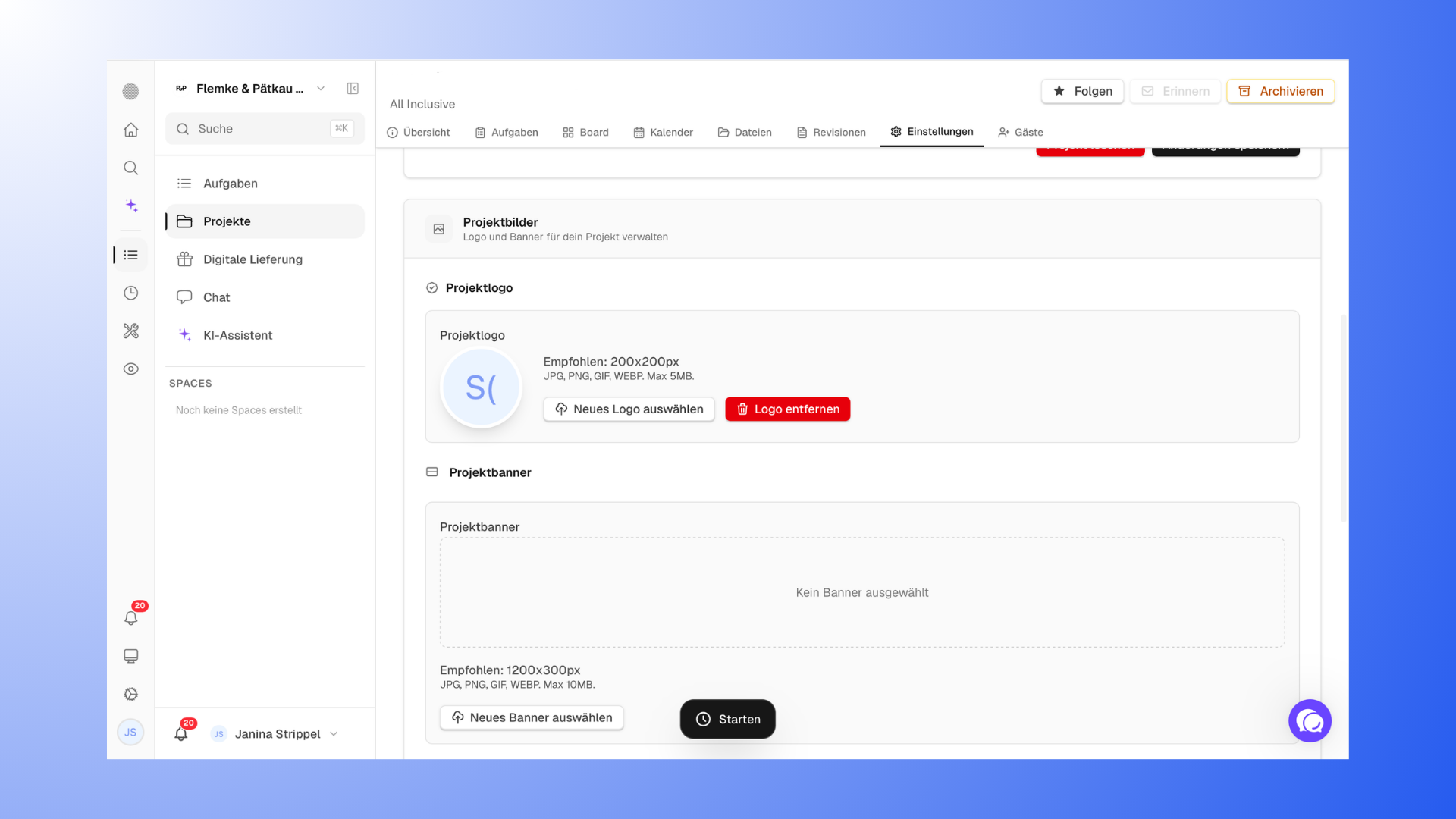
You can customize the appearance of your project:
Project logo
Project banner (optional)
This provides a better overview, especially if you have many projects.
Meta fields
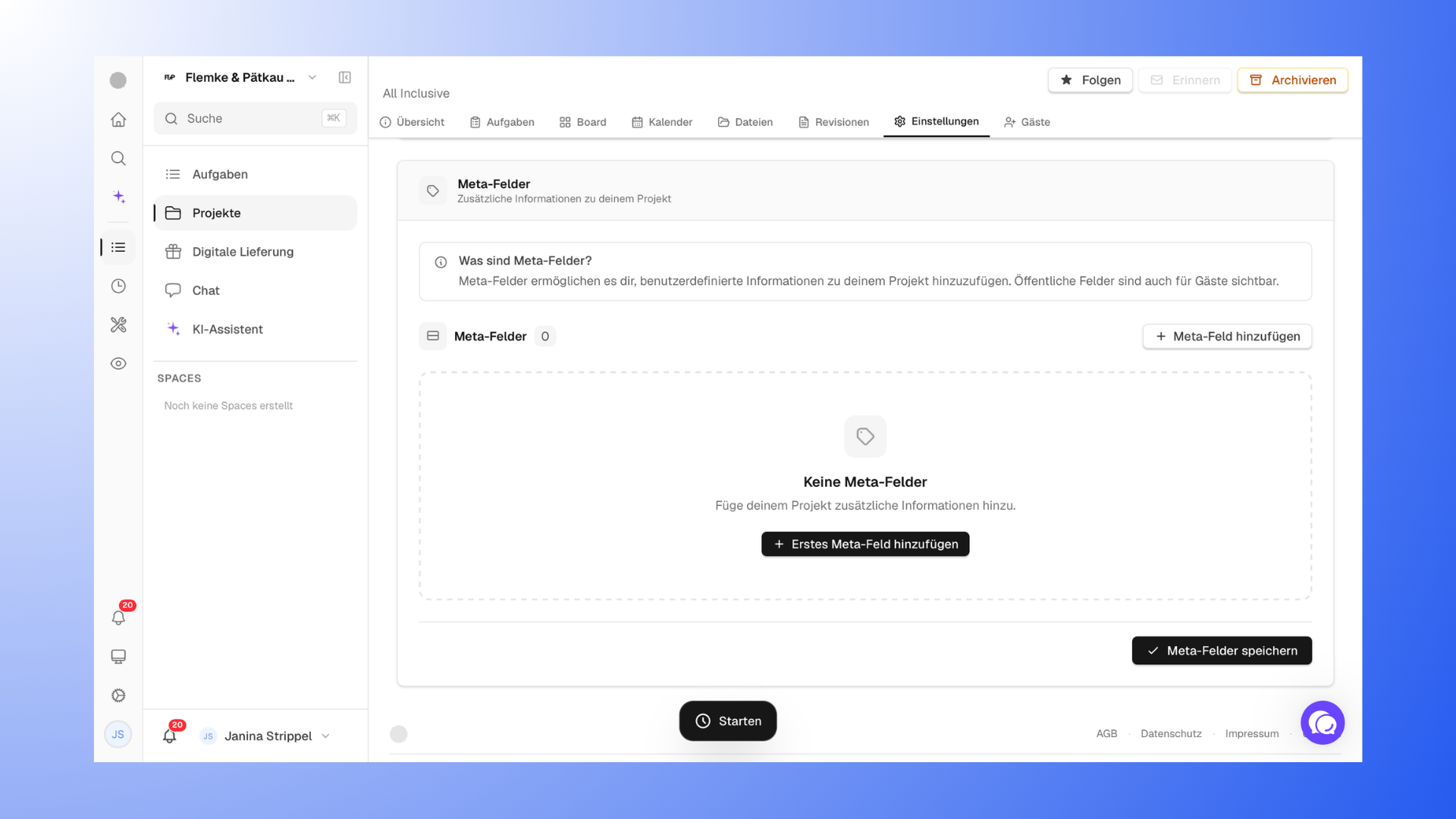
You can use meta fields to store additional information.
For example:
Package type
Internal info
Custom project data
Important:
You can decide whether this information is also visible to guests.
When should you adjust settings?
As a rule:
at the start of a project to set everything up properly
during the project, if requirements change
You can adjust the settings at any time.
Tips and avoiding common mistakes
Make sure to name and structure your project properly right from the start. This will save you a lot of time later on.
Use the settings intentionally to tailor your project to your workflow, for example, for notifications or reminders.
A common mistake is starting projects without a clear structure. This makes it easy to lose track of things, especially when working with multiple clients.
🔗 Related articles
“What Proyex is definitely not”